

Labs
A lab is a workspace with its own parts, inventory, projects, and App Settings. Your account can own labs and be a member of other labs.
Choose or switch labs
After sign-in, ElecParts opens your only accessible lab automatically. If you have more than one, it opens Select Lab, where labs are grouped as Owner Labs and Member Labs. Member entries show your role and, when available, the date you joined. Select Go to Lab to open that workspace.
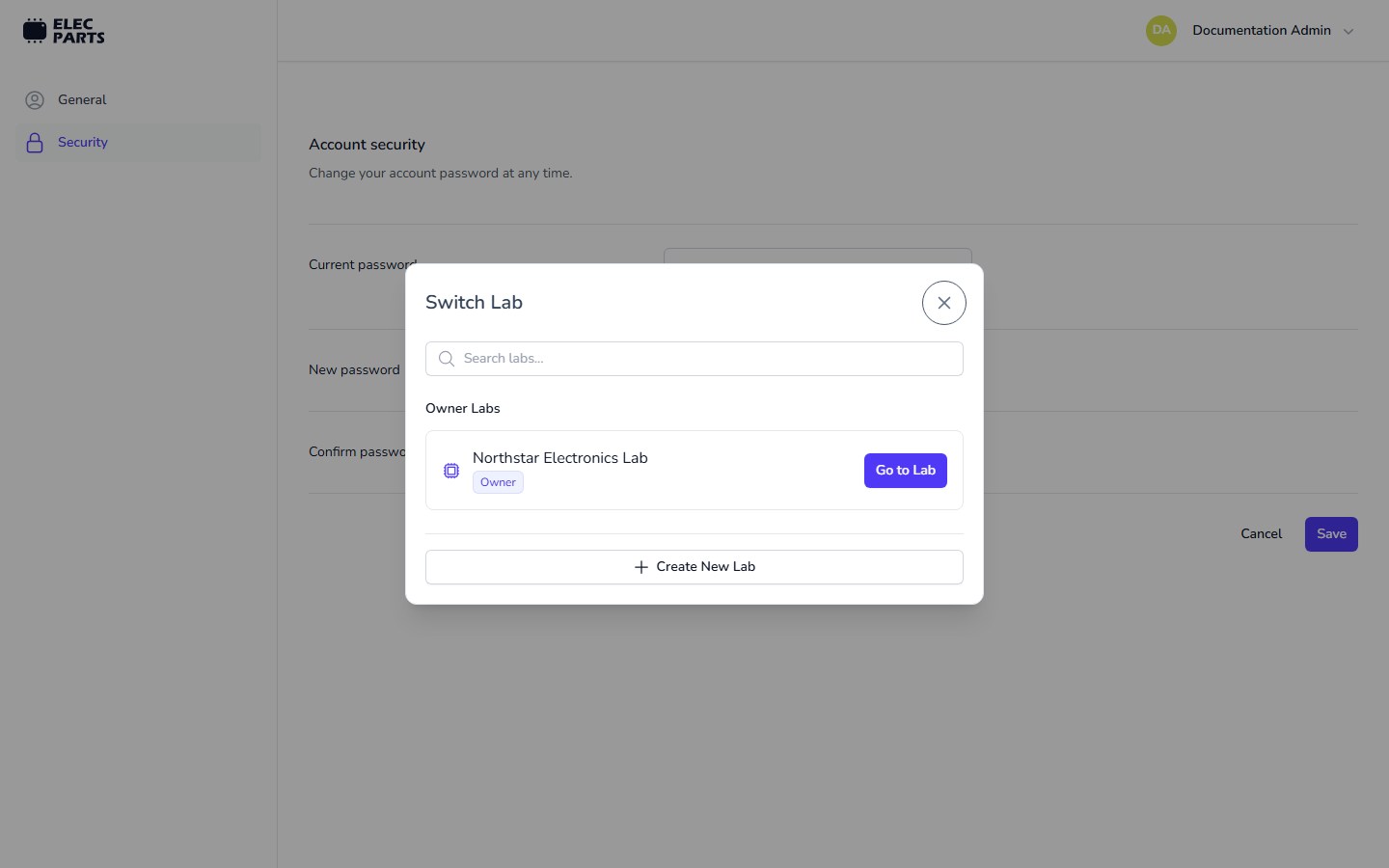
From a lab, open the user menu and select My labs to open the lab selection page in a new tab. The same menu can provide quick links to up to five labs, prioritizing labs you own. Select View all labs to open the Switch Lab dialog with the complete list and a search field. Selecting Go to Lab in the dialog switches the current tab.
The Switch Lab dialog also lets you leave a lab where you are a member. Leaving removes your access to that lab and its projects and data. Owners cannot leave their own lab; ownership must be transferred or the lab deleted first.
Create a lab
Select Create New Lab from Select Lab or Switch Lab. On Create a new lab, enter a lab name and optionally choose a subdomain. A lab name must contain at least three letters, numbers, or spaces. A subdomain must use lowercase letters, numbers, or hyphens; it must be 1–63 characters and cannot start or end with a hyphen. It must also be available. Leave the subdomain empty to have ElecParts generate one.
Select Create lab to submit the form. ElecParts provisions the workspace and shows setup progress, then opens the lab when provisioning finishes. If the name or subdomain does not meet the requirements or the subdomain is already taken, the form shows an error.
An organization-specific lab maximum can disable Create lab. If the form reports that you have reached it, contact an administrator as the page directs.
New accounts receive an initial lab after email verification. Use Create New Lab when you need another workspace. You must be signed in with a verified account to create a lab.
For the difference between account-wide choices and settings for a particular workspace, see App Settings.