

Creating and editing Parts
Open Parts and select Create to add a Part. To change a catalog record, select its edit action in the table or choose Edit part in its details drawer. Creating or editing a Part updates catalog information; it does not receive, move, or adjust physical stock.
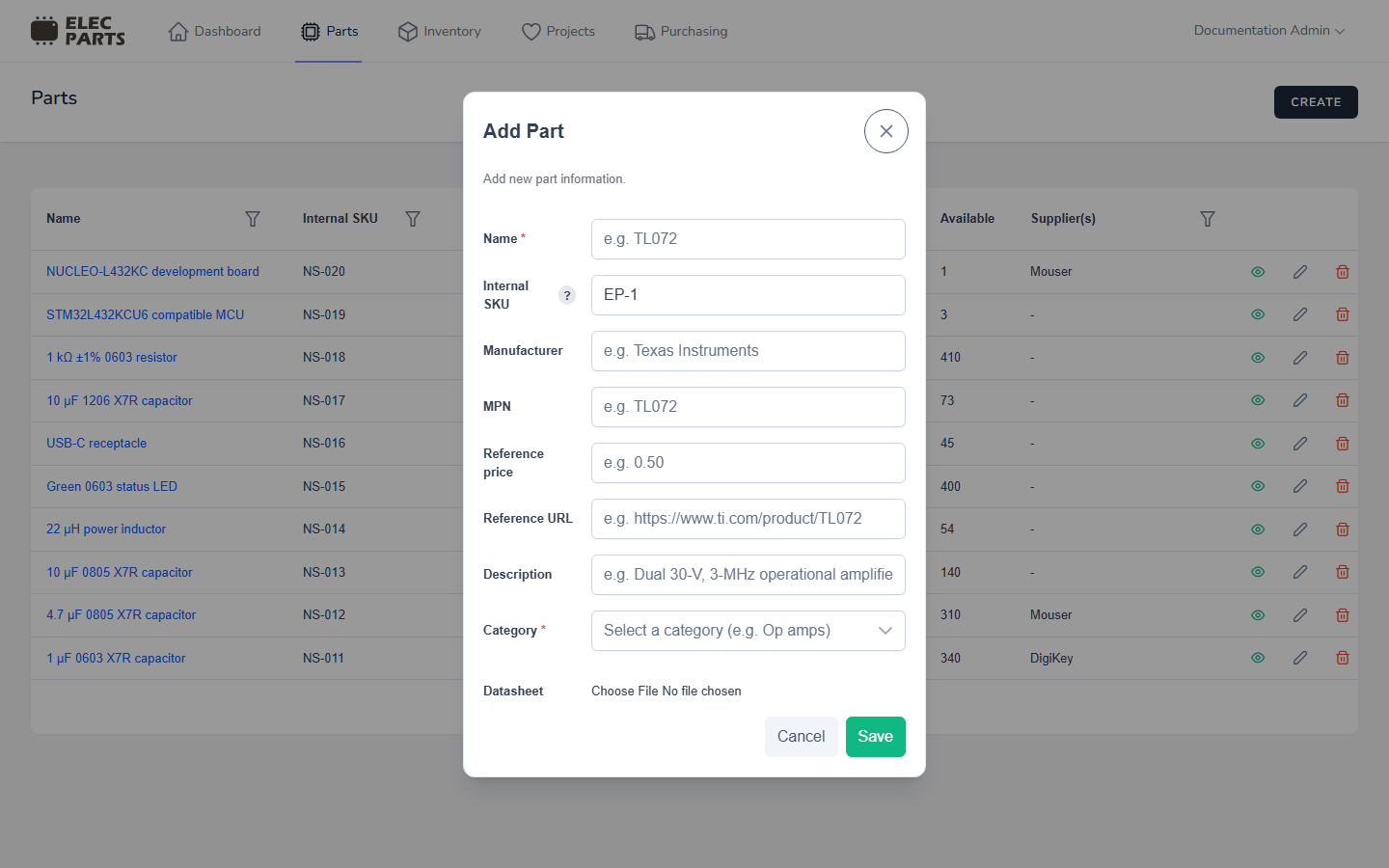
Part fields
| Field | Details |
|---|---|
| Name | Required, up to 255 characters. Use a name that makes the component recognizable in stock, BOMs, and purchasing. |
| Internal SKU | Optional, unique within the lab, and up to 255 characters. A suggested SKU is filled in when the form opens. You can keep it or enter a different value. |
| Manufacturer | Optional manufacturer name, up to 255 characters. |
| MPN | Optional manufacturer part number, up to 255 characters. |
| Reference price | Optional numeric reference price; the form's minimum is zero. It is catalog guidance, not the recorded cost of a received stock batch. |
| Reference URL | Optional valid web address for a product or manufacturer page. |
| Description | Optional text, up to 255 characters. |
| Category | Required. Choose a category from the searchable category list. Manage categories in App Settings → Categories. |
| Datasheet | Optional PDF file up to 5 MB. On edit, users with Delete Files permission can clear the current attachment in the form to reveal the PDF chooser, then select a replacement. Saving a replacement replaces the current file; leaving the chooser empty keeps the existing file. Download and preview actions depend on your file permissions. |
The suggested SKU uses the prefix configured in App Settings → General, followed by a hyphen and a number, for example EP-1. The default prefix is EP if no prefix has been set. The suggested value is not locked; you can customize it as long as it remains unique.
Supplier and supplier-part-number details are maintained as supplier listings associated with a Part. The Add Part form does not look up distributor products. To connect a catalog Part to purchasing, use its supplier listing where that workflow is available; see Purchasing.
Part identity
When both Manufacturer and MPN are present, their pair identifies a Part. Matching ignores letter case and whitespace at the beginning or end of either value; characters inside an MPN remain significant. The same MPN from a different manufacturer is a different Part. ElecParts does not infer manufacturer aliases or identify a Part from MPN alone.
An empty Manufacturer is stored as unknown (NULL), not as a placeholder such as “Unknown”. Parts with an unknown manufacturer may have the same MPN when they have separate supplier identities. DigiKey and Mouser inventory imports first reuse an existing listing for that supplier number, then match a known Manufacturer+MPN pair. A new supplier number without a manufacturer creates a separate unknown-manufacturer Part; if the supplier number already points to a Part with contradictory details, the import asks for manual correction.
On existing installations, the tenant migration checks for duplicate normalized Manufacturer+MPN pairs before adding the database uniqueness rule. It reports the pair and Part IDs and stops without merging, deleting, or relinking catalog or history records. Resolve any reported identities manually while preserving their stock, supplier listings, projects, builds, and purchase history, then rerun the migration.
Save or cancel
Select Save to create or update the Part. Required-field, SKU, category, URL, file-type, and file-size errors appear with the relevant field. Select Cancel to close the form without saving its changes.
You need Create Parts permission to add a Part and Edit Parts permission to change one. See Parts for how catalog records connect to stock and projects.
When a Part cannot be deleted
The delete action is available with Delete Parts permission. After you confirm, ElecParts blocks deletion while the Part is still referenced by inventory or another workflow. This includes:
- stock batches, including batches whose current quantity is zero;
- supplier listings;
- a Project BOM;
- a project build, build selection, or reservation; or
- a purchase request.
The deletion error says the Part is in use and cannot be deleted. Resolve editable references through the relevant Inventory, Projects, Builds, or Purchasing workflow. A Part with a stock batch remains in use even after its quantity is scrapped, because the batch is retained as history; saved build history can also keep a Part in use.