

Project Builds
A build plans a run of a project at a specific quantity. When you create it, ElecParts snapshots the project's BOM; each required quantity is the BOM quantity multiplied by the build quantity. You can match those requirements to inventory, review the stock that will be picked, and record the build as finished.
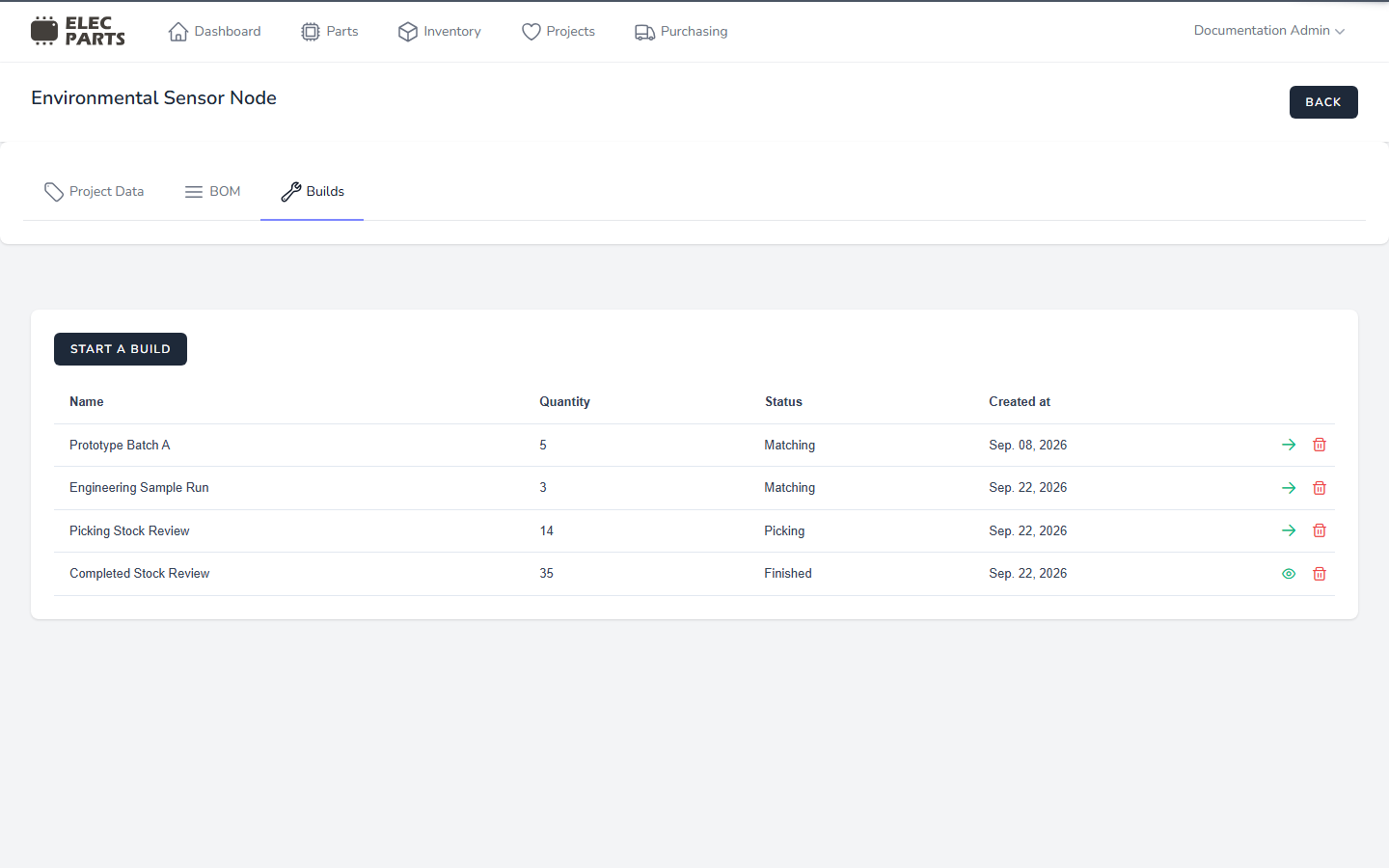
Start a build
- Open the project and select Builds.
- Select Start a build.
- Enter a Name, or leave it blank to have ElecParts generate one.
- Set the Quantity to at least 1.
- Select Start.
The build opens at Matching. Its BOM requirements are saved with the build, so later changes to the project BOM do not change this build's quantities.
Build workflow
The build progress indicator has three steps:
- Matching — select Parts and reserve available quantities for each BOM requirement. These selections reserve inventory for the build but do not reduce on-hand stock.
- Picking — review the specific stock holdings selected from the Parts reserved in Matching.
- Build — finish the build. ElecParts consumes the reserved stock and marks the build Finished.
Matching and Picking are the build's saved phases. Finished is shown after the build is completed. The Builds list shows each build's name, quantity, status, and creation date. Select the continue or view action in a row to open it.
Match BOM requirements
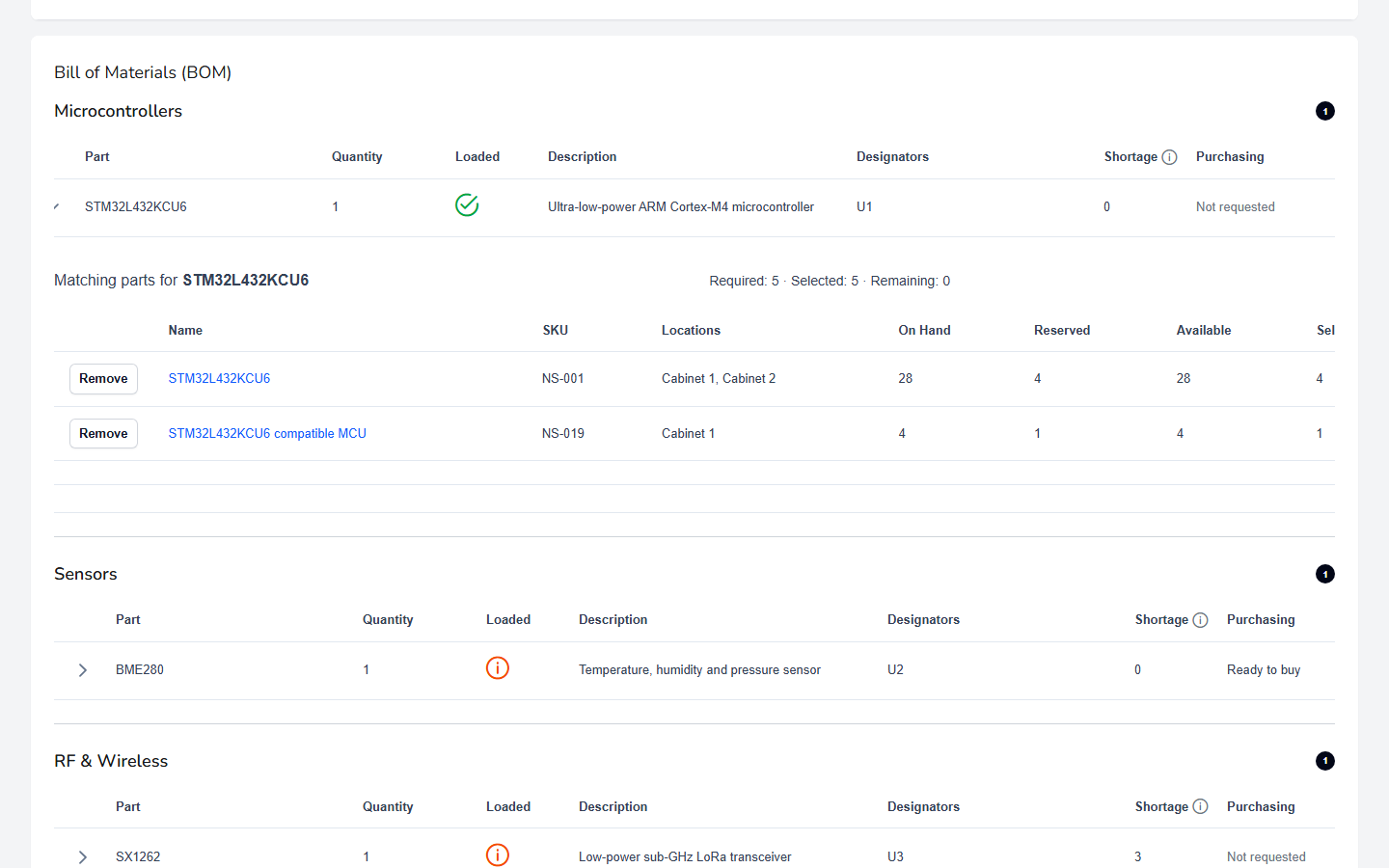
Expand a BOM row to see Matching parts for that requirement. The candidate table groups inventory by Part and shows its locations and stock totals:
- On Hand — the physical quantity held across the Part's stock batches and locations.
- Reserved — quantity committed to active builds, including Part-level reservations made during Matching and stock allocations made during Picking.
- Available — quantity not committed to other active builds and therefore available to select for this build. The current build's own Selected quantity is shown separately.
- Selected — quantity this build has selected from that Part.
- Need — remaining requirement for this BOM row.
Select a Part to reserve stock toward the requirement. ElecParts selects up to the amount still needed, limited by that Part's available quantity. The Required, Selected, and Remaining totals above the candidate table update as you add Parts. One requirement can be covered by multiple Parts; for example, you can use one Part for the quantity in stock and another for the remaining amount. Select Remove on a selected row to release that Part's reservation without removing the others.
Matching suggestions are based on the BOM Part name and stocked Parts. If the Part you want is not listed, search for it with Can't match? Try searching, then select a stocked result. A candidate with no available stock remains visible but cannot be selected. If available stock does not cover the full requirement, the remaining quantity stays visible and you can continue with another Part or request purchasing.
When you have permission to view Parts, select a Part's name to open its reusable Part details drawer, with its stock overview and Part information.
Selection order
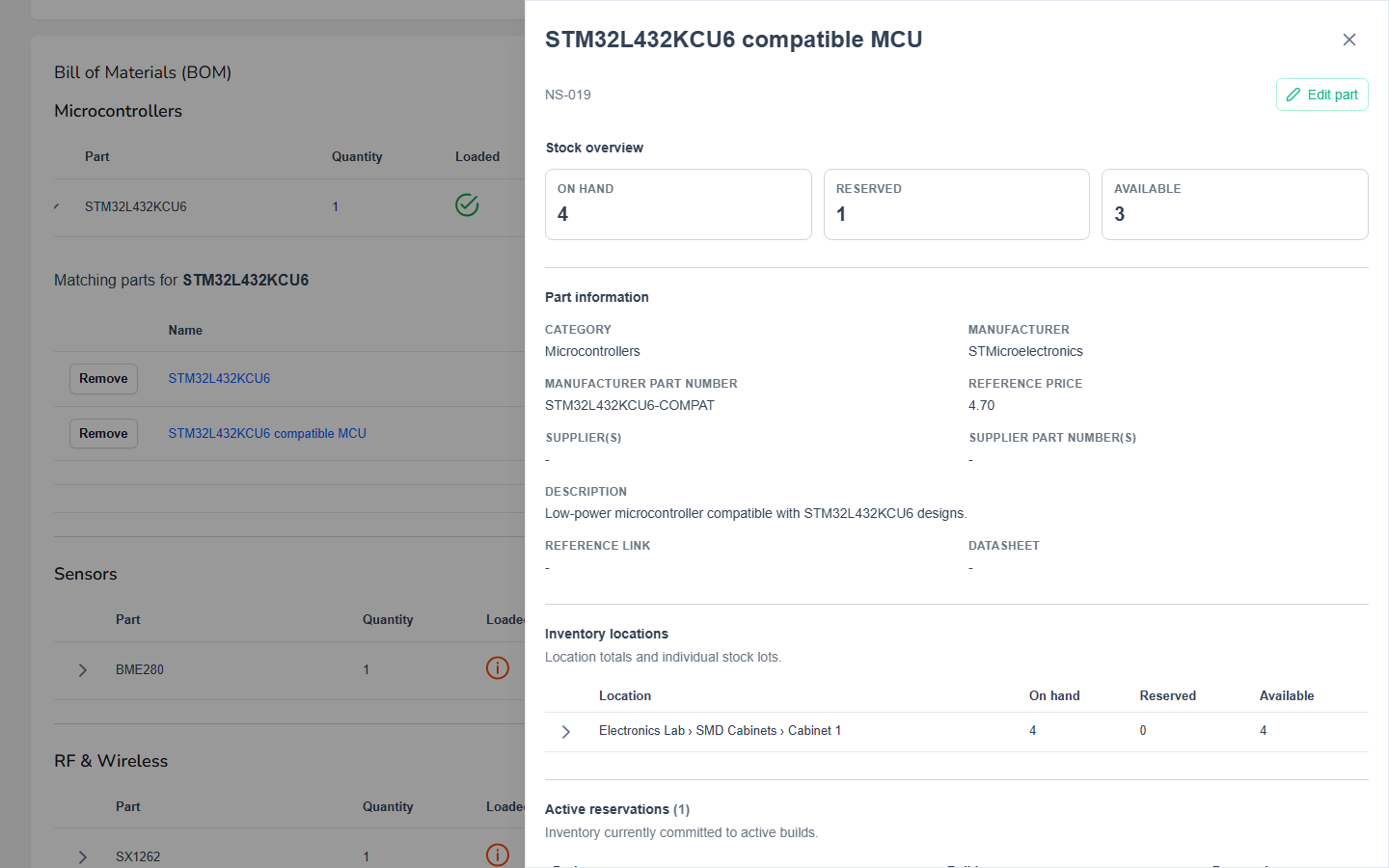
Choose a Selection order before starting Picking:
- FIFO — use older stock first.
- LIFO — use newer stock first.
- Smallest stock — use holdings with less available stock first.
- Largest stock — use holdings with more available stock first.
Selection order arranges concrete stock holdings within each Part you selected. It does not decide which alternative Part will cover a BOM requirement. You can review the proposed holdings in Picking before finishing the build.
Purchasing from a build
The Shortage column summarizes what the matching inventory cannot cover. Inventory matching is a suggestion, so a shortage of 0 does not prevent you from selecting Request. A build request sends the full required quantity for that BOM row to Needs Purchasing; it does not select a supplier or create a Purchase List.
The Purchasing column shows the request's progress, and To buy shows how much request quantity has not yet been allocated to a Purchase List. As Purchasing adds demand to lists, To buy decreases. Receiving the order is a separate step that updates inventory.
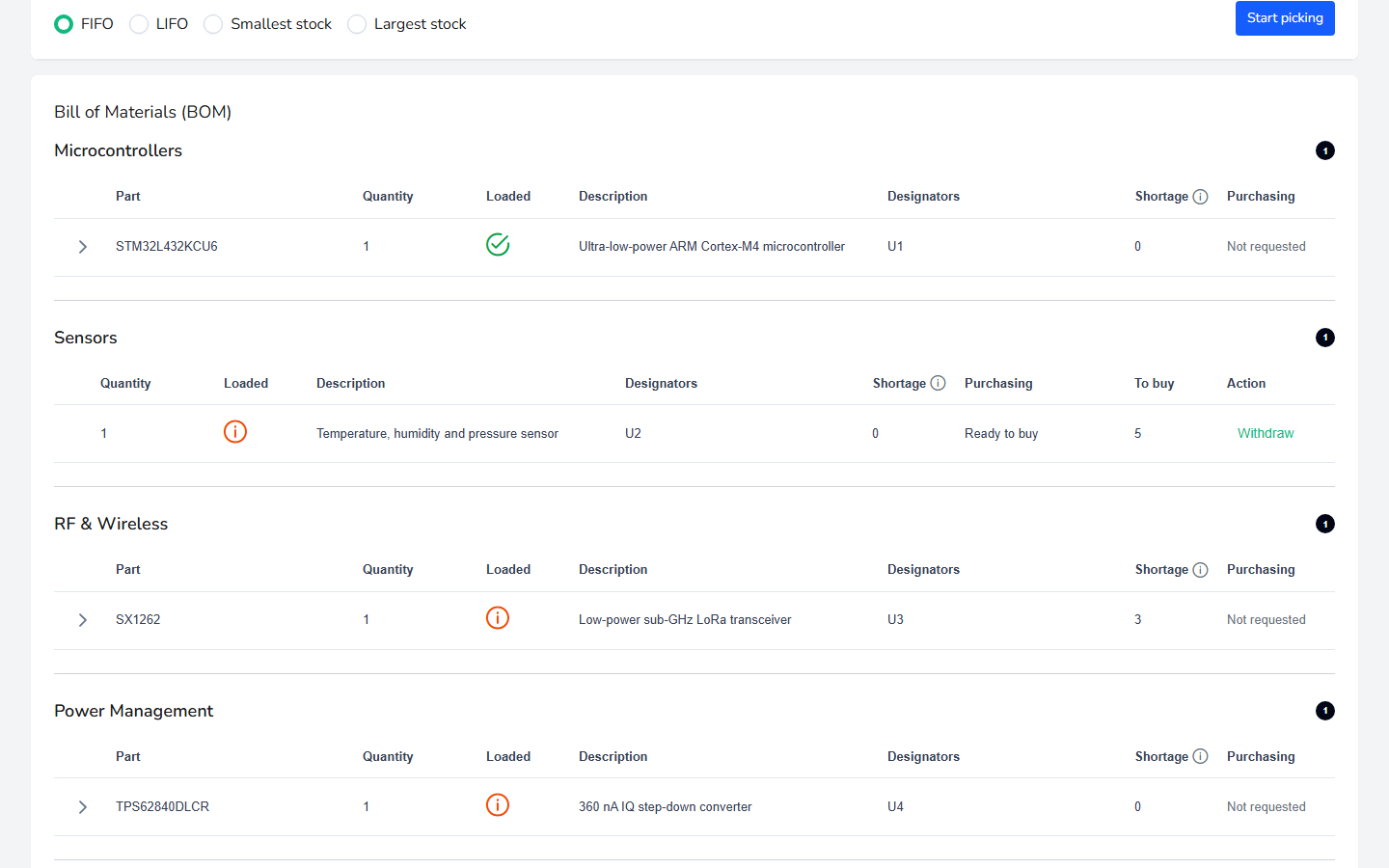
While a request is open and none of its quantity has been allocated to a Purchase List, its action is Withdraw. After any quantity is allocated to a list, the build no longer offers that action. An open request is cancelled when the build is finished; if you undo the build, its request is reopened.
Continue sourcing a build request in Needs Purchasing, where requests from builds appear alongside other purchasing demand.
Review Picking
Select Start picking to move from Matching to Picking. You can start even when some BOM requirements are still incomplete. ElecParts converts each selected Part quantity into allocations to specific stock holdings using the selected order. If a selected quantity can no longer be allocated because stock changed, an error appears and the build stays in Matching so you can review it.
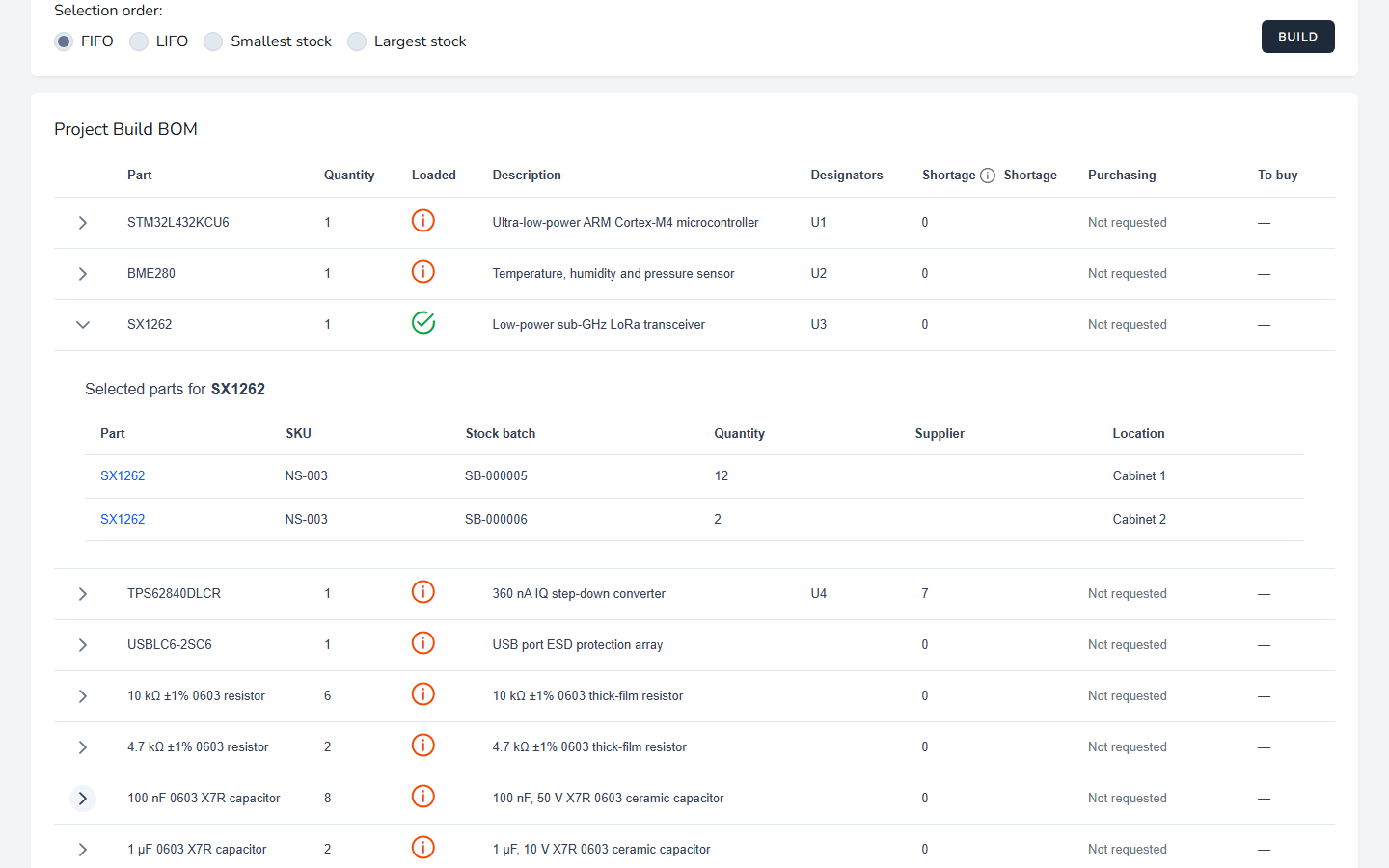
Expand a requirement to review its allocated Parts, SKUs, stock batches, quantities, suppliers, and locations. Requirements with no or partial allocations remain under-covered. Once Picking has started, you can review allocations but cannot change the Matching selections.
Finish or undo a build
In Picking, select Build to finish. If any BOM requirement is incomplete, ElecParts asks whether you want to finish the incomplete build. Confirming consumes only the stock reserved for the build; missing quantities are not consumed. When completion succeeds, the Builds list shows Finished, and the expanded requirement rows show the consumed stock.
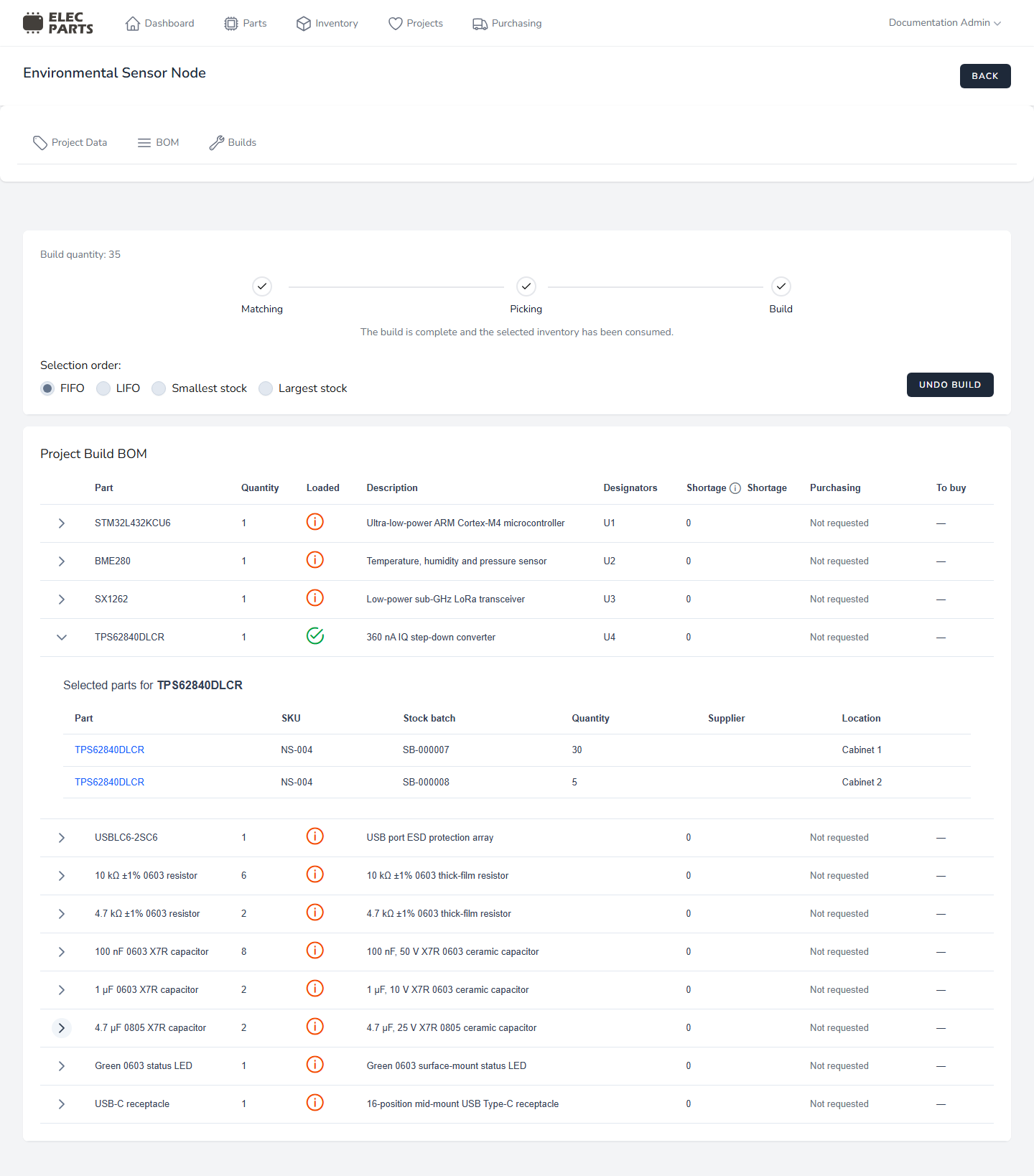
On a finished build, select Undo Build and confirm to return the used Parts to inventory. The build returns to Matching, and you need to make a new matching and picking plan before finishing it again.
When a project is archived, its existing build pages remain available for review, but actions that change matching or stock are blocked.
See also: Managing projects and Project BOM.