

BOM Templates
Open Settings → BOM Templates to save column mappings for project BOM CSV files. Select Create a template, enter a name and optional description, then choose a sample CSV file to populate the column choices from its header row. You can also type a column name in a mapping selector.
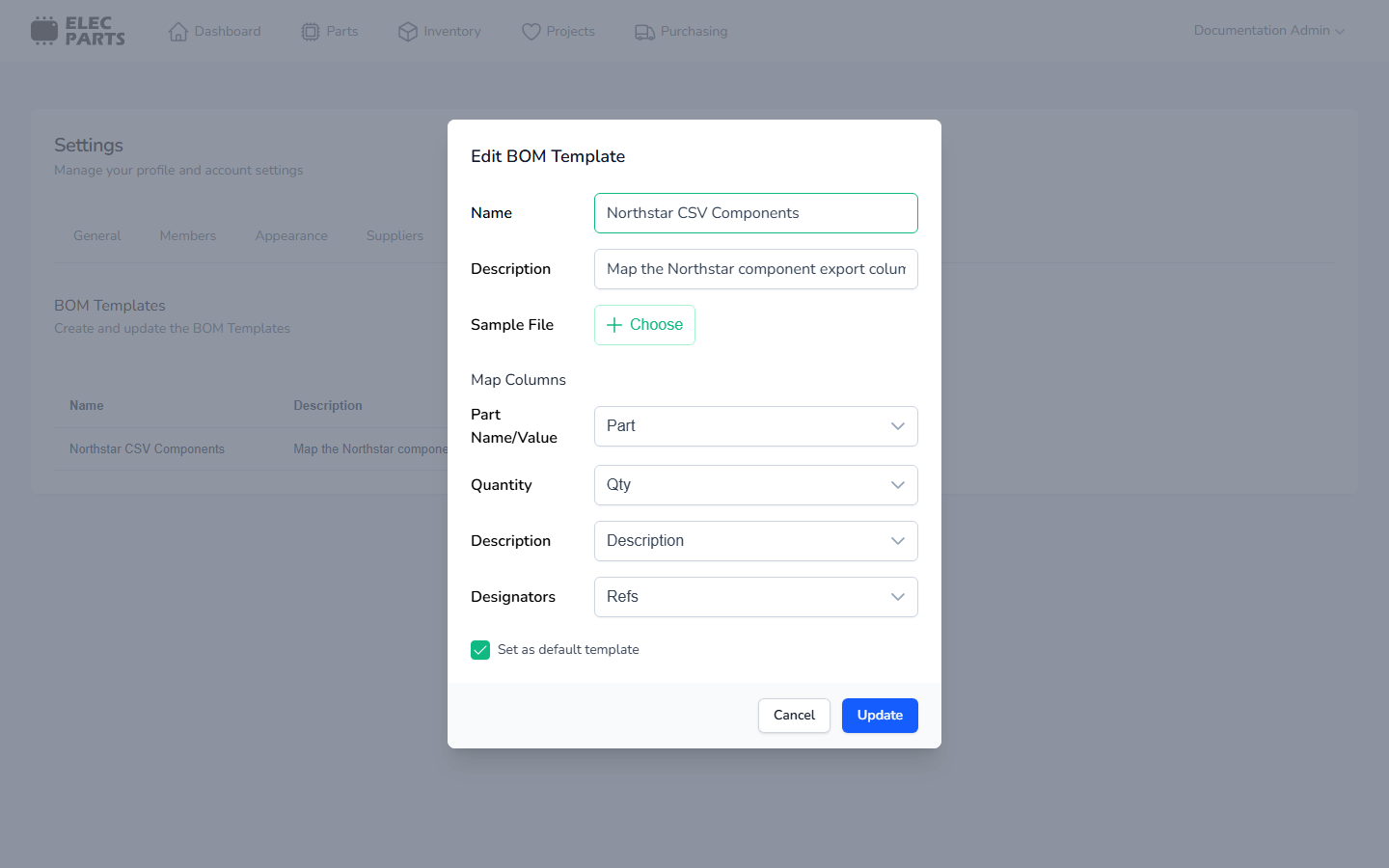
Map these fields:
| BOM field | Required | What the import reads |
|---|---|---|
| Part Name/Value | Yes | The part name or value for the BOM row. |
| Quantity | Yes | A positive whole number from 1 to 150. |
| Designators | Yes | Comma-separated references such as R1,R2. Each reference must be nonblank. |
| Description | No | Optional row description. |
Select Create to save the template. Use the row's edit or delete action to update or remove a template. The form also offers Set as default template; when importing a project BOM, choose the template explicitly in the import dialog.
Use a template during project BOM import
Open a project, select BOM, then select Import BOM. Choose your saved template from Template, select or drop a .csv file, and select Import. The template's mapped header names must appear in the uploaded file. Header matching ignores letter case, but if the mapped header appears more than once, the import reports an ambiguous column and stops. Correct the CSV or update the mapping, then try again.
The importer reports missing mapped headers and invalid rows, including a blank part name, a quantity that is not a positive whole number from 1 to 150, or missing/blank designators. A template maps columns; it does not create supplier document parsers or add parts to the shared catalog. Read Project BOM for how imported rows fit into a project's BOM and what an import replaces.