

Receive Purchase List items
Receiving records what arrived from a supplier. An Ordered Purchase List can be received in one or more deliveries. Each confirmation records receipt history; tracked Parts are added to the selected inventory locations, and linked Purchase Request progress reflects the quantity received.
When receiving is available
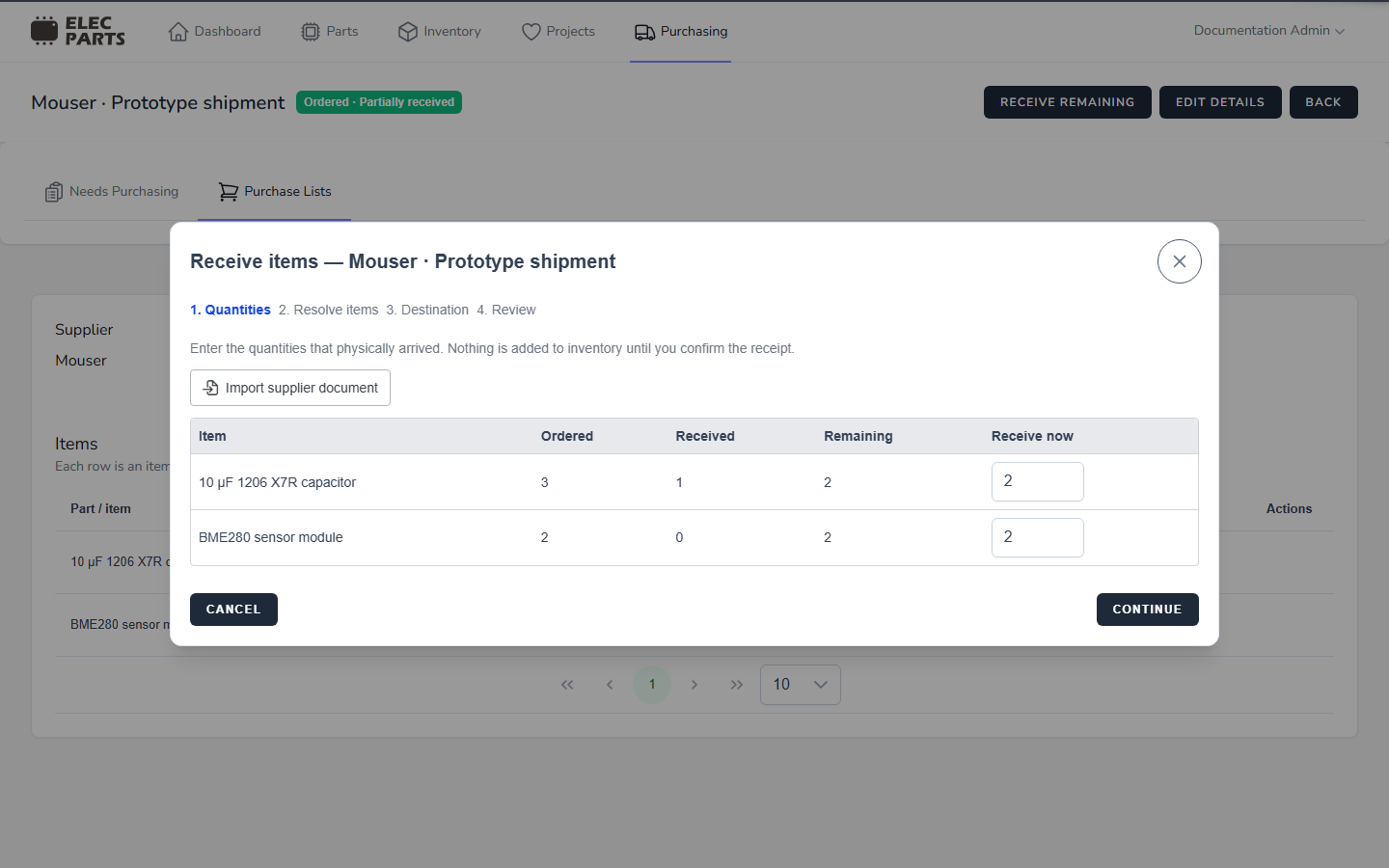
The list must be Ordered. Before any receipt, the detail page shows Receive items. After a partial receipt, it shows Receive remaining. A fully received list has no receive action. The receiving form starts each line at its ordered quantity minus the quantity already received, and shows only lines with a quantity left to receive.
Receiving controls are available to users with Edit purchasing access. Users without that permission can view the list but do not see the receiving action. A Purchase List cannot be cancelled after any quantity has been received, including a partial delivery.
Enter physical quantities
The Quantities step shows each line's ordered quantity, quantity already received, remaining quantity, and Receive now. The starting value is the remaining quantity. Enter the whole number of units that physically arrived in this delivery. Set a line to 0 to leave it out of this receipt; at least one line must have a positive quantity to continue.
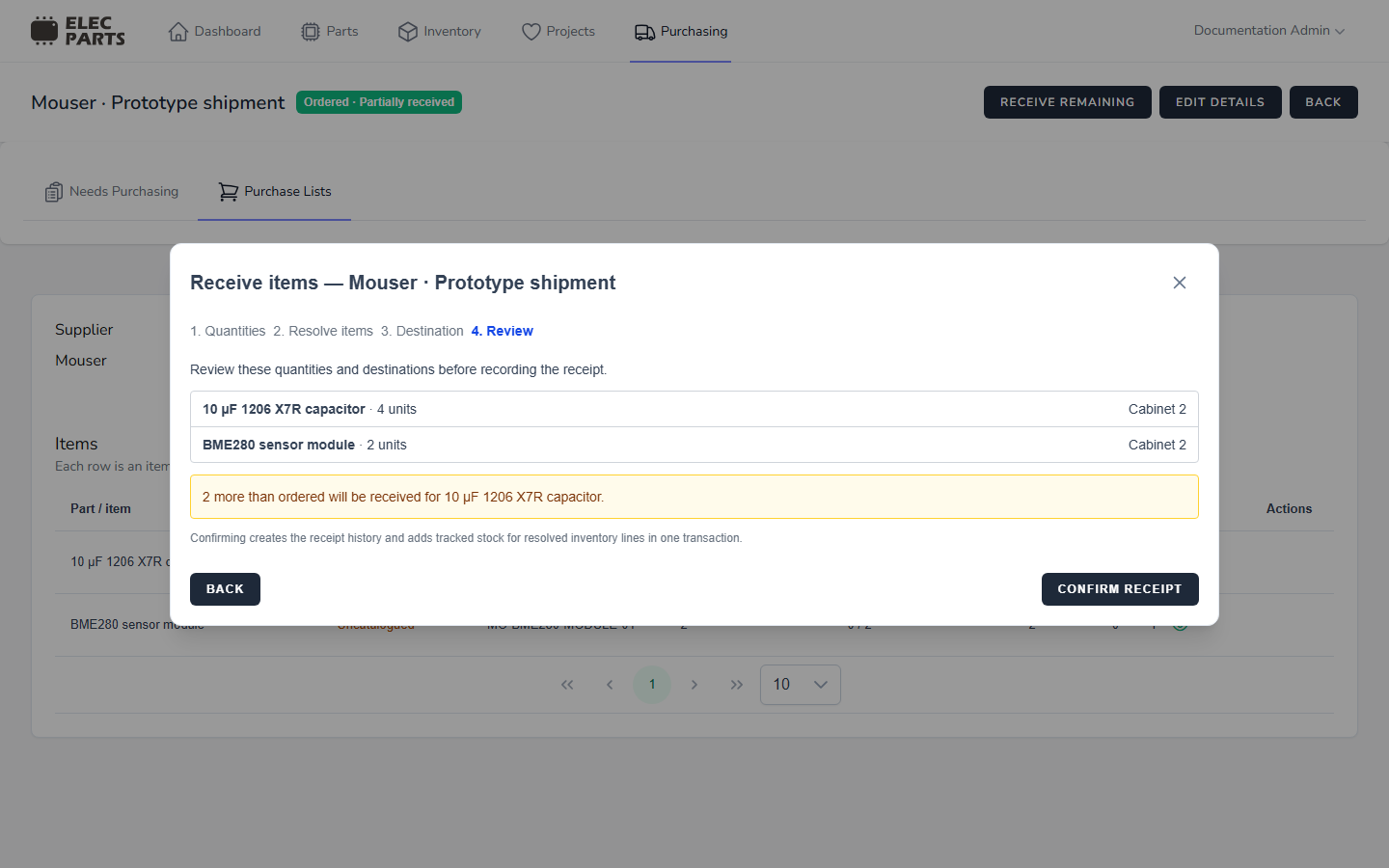
An over receipt—receiving more than the ordered quantity—is allowed. Receiving does not cap the value at the remaining amount. The Review step warns when the total received for a line will exceed its ordered quantity, so check the shipment and quantity before confirming.
Resolve unlinked items
The Resolve items step appears when a line with a positive receive quantity has no linked Part and needs an identity decision. Already-linked Parts skip this step. A line set up as non-inventory also skips Part resolution. If a supplier document identifies a different Part or supplier listing from one already linked to a line, the conflict blocks receipt; correct the Purchase List or use the correct supplier document before continuing.
Choose one of these options for each unlinked received line:
- Link existing Part searches the catalog by Part name, manufacturer, manufacturer part number, or internal SKU. Search with at least two characters. If the selected Part has supplier listings for this Purchase List's supplier, you can select a listing; otherwise the system can use the supplier number on the line to find or create the matching listing.
- Create Part requires a Part name and category. Description, manufacturer, and manufacturer MPN are optional. A supplier number from the Purchase List or imported row is kept with the purchasing history and linked to the new Part when available.
- Treat as non-inventory records the received quantity without linking or creating a Part and without adding tracked stock.
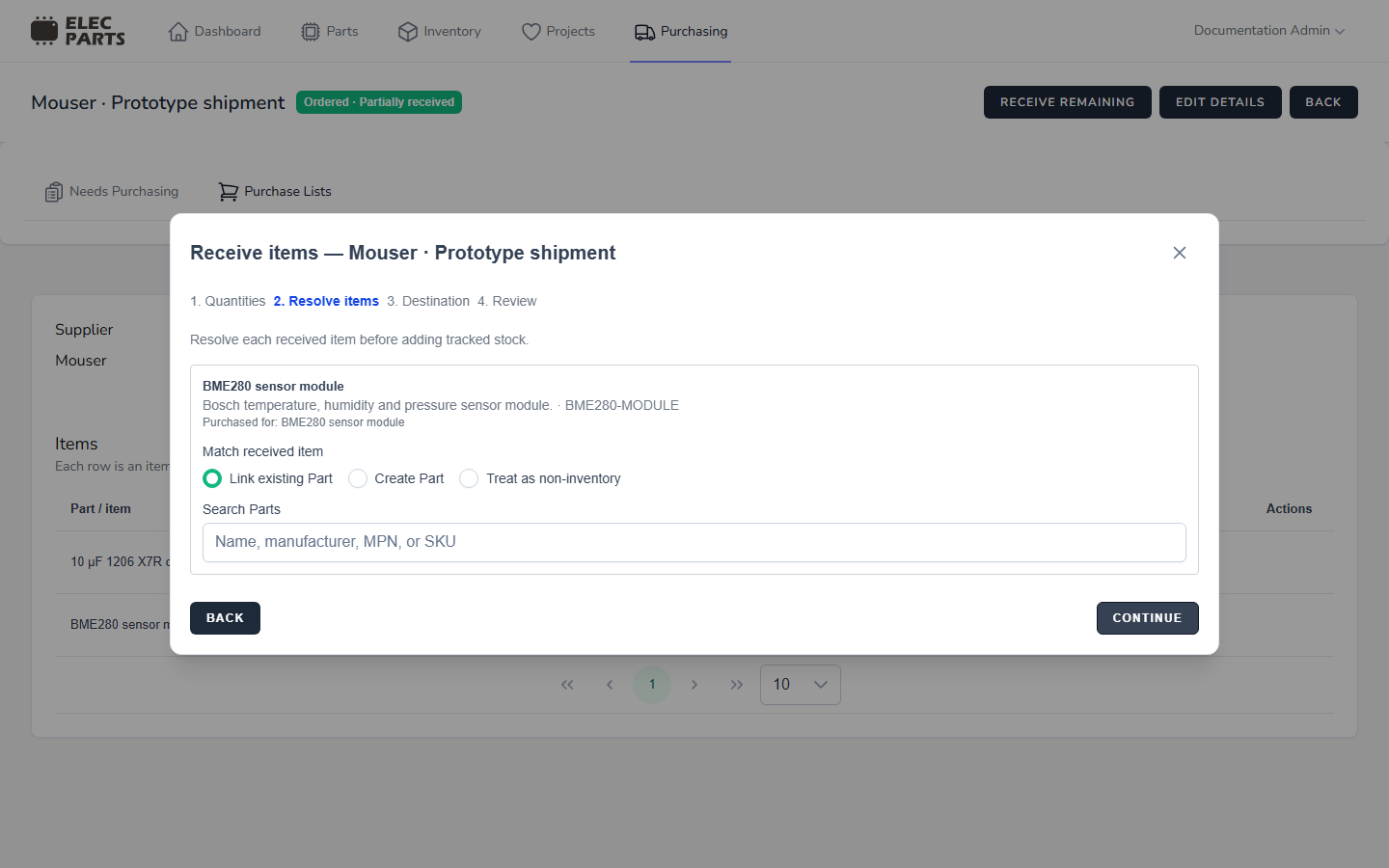
An existing Part link is not replaced during receiving. Supplier identity must also agree with the Purchase List line. A supplier number already linked to a different Part must be corrected or resolved to that Part before the receipt can be recorded.
Choose destinations and receipt details
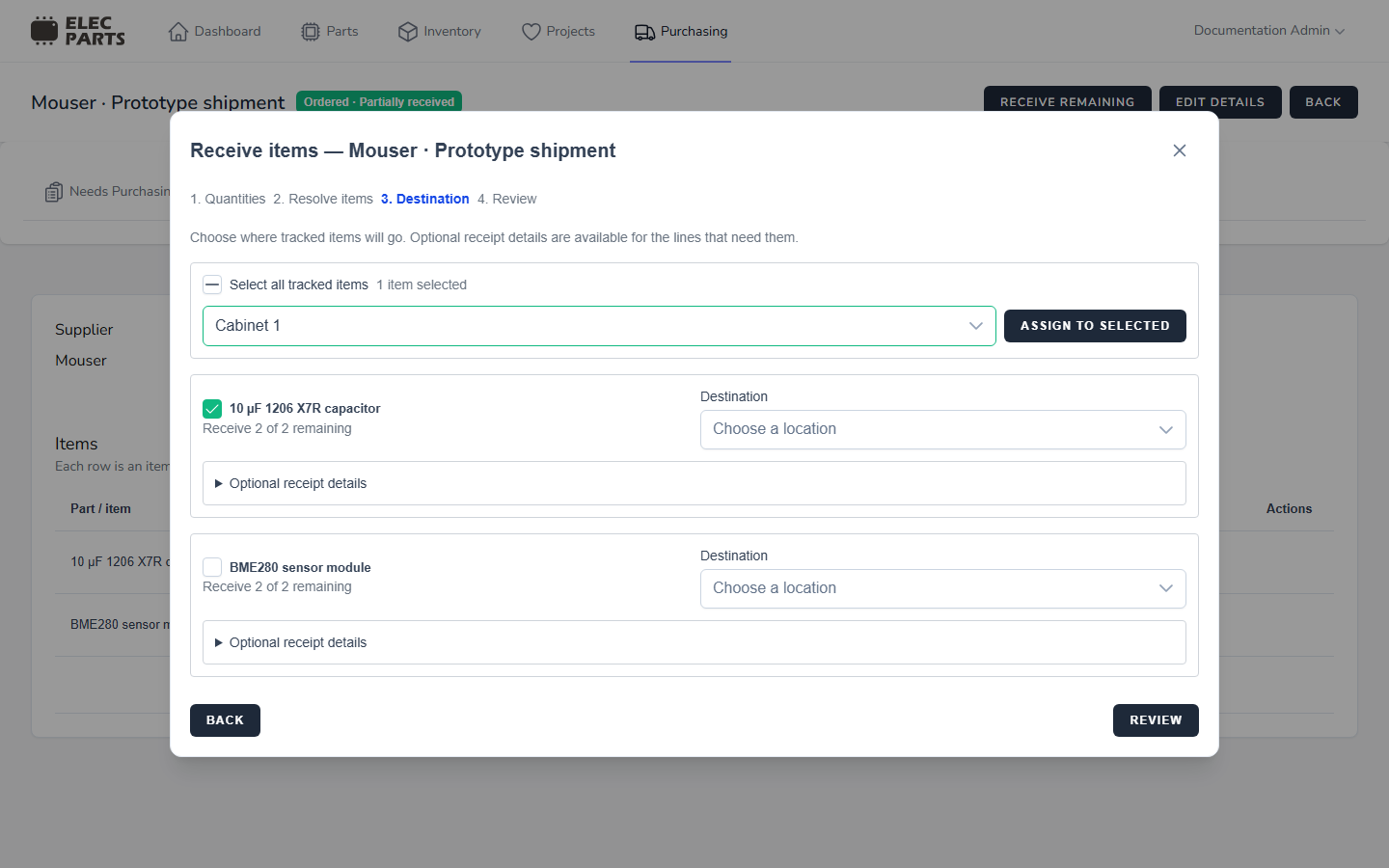
Each tracked line needs one active, exact inventory location. When the lab has only one active location, it is selected automatically. With multiple locations, choose a destination for every tracked line. The chosen location is where the received stock is stored; a parent location's roll-up does not replace choosing the exact location.
For several tracked lines going to the same place, select their checkboxes or use Select all tracked items, review the selected count, choose a location, and choose Assign to selected. You can still change an individual line's destination afterward. Non-inventory lines do not need a destination.
Each line also has optional receipt details. Received date, Unit cost, Currency, Manufacturer lot, and Receipt notes can be left blank. If no received date is entered, the current date and time are recorded. Currency should be a three-letter code such as EUR or USD when supplied; unit cost cannot be negative.
Review and confirm
Review the quantity and destination for every selected line. If supplier-document values were used, the review also shows their total quantity and row count as references. An overage warning identifies lines where the cumulative received quantity will exceed the order.
Choose Confirm receipt only after checking the physical quantities and locations. Confirmation records the receipt history, adds tracked stock for resolved inventory lines, and updates receipt progress for the Purchase List and its linked requests. Non-inventory lines keep receipt history but create no stock.
Supplier documents are optional. For supported suppliers, Supplier Document Import can help match document rows to this Purchase List before you enter physical quantities. After confirming a receipt, review the resulting holdings in Stocked Parts.