

Project BOM
A project's bill of materials (BOM) lists the parts required by its design. BOM rows are grouped into categories and show the row's name, quantity, linked part (when selected), designators, and description. A linked part connects the design requirement to a part in your ElecParts library for inventory matching during builds.
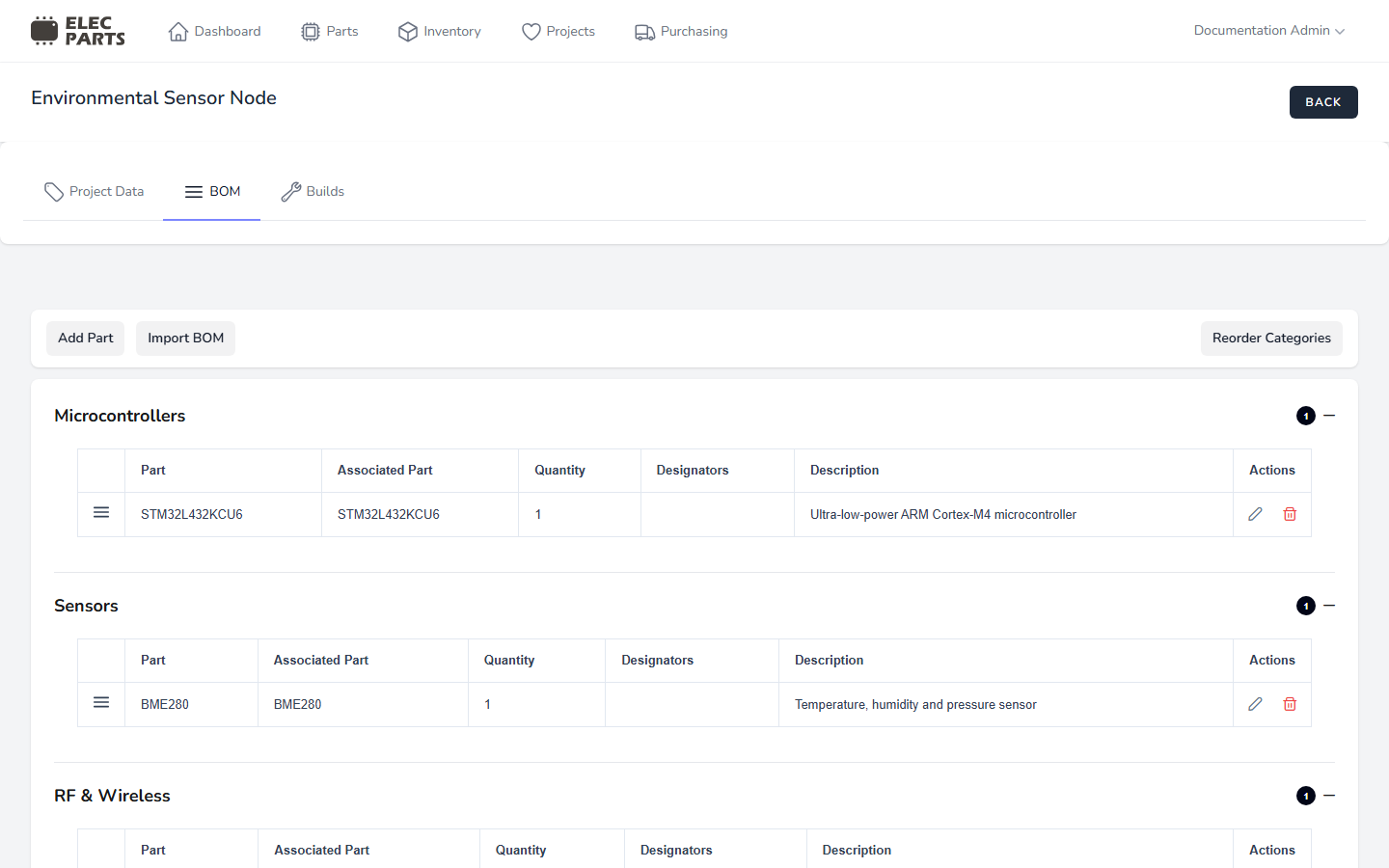
Add a BOM part manually
- Open the project and select BOM.
- Select Add Part.
- Choose a Category.
- Optionally search for a library part by SKU or name and select a result. If you do not link a part, enter the design's part name instead.
- Enter the part Name and Quantity. A category, name, and quantity of at least 1 are required.
- Optionally add Designators using Edit, and enter a Description.
- Select Save.
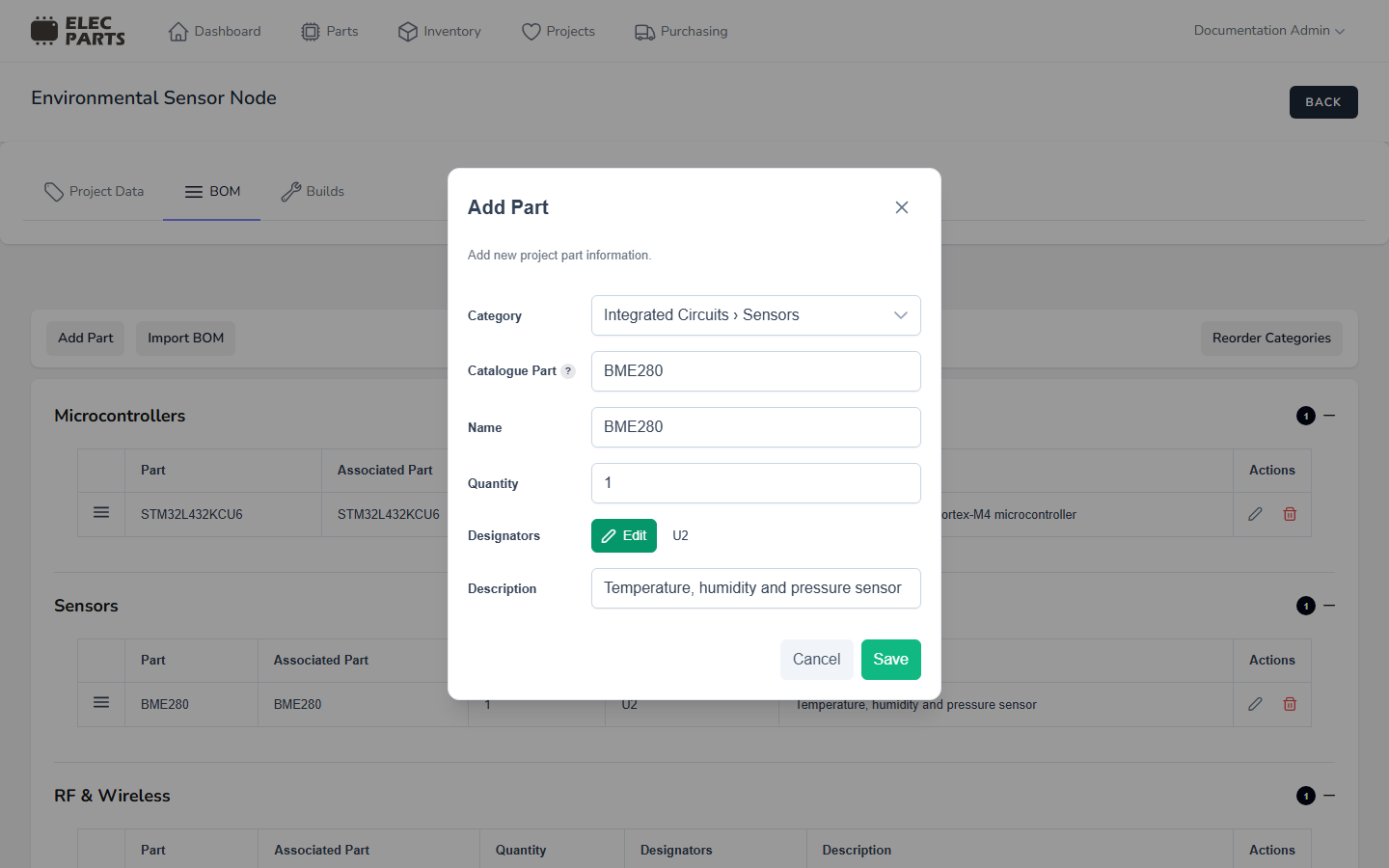
Edit, remove, and reorder BOM rows
Use a row's edit action to change its category, linked part or name, quantity, designators, or description. Use its delete action to remove the row after confirming. These actions require project edit access, and are unavailable while the project is archived.
Drag rows within a category to change their order; the row order saves when you drop them. To change category order, select Reorder Categories, drag categories into the desired order, and close the dialog. The new order is saved when you drop a category. Category collapsed/expanded state is a separate display preference and does not change its order.
Import a BOM
Import a CSV BOM when you already have a supported export or a file whose columns match a saved template.
- Select Import BOM.
- Choose a template. KiCad/Eagle (Default) recognizes supported KiCad and Eagle BOM column headers. Other templates map your file's columns to BOM fields.
- Choose a
.csvfile or drag it into the upload area. This importer does not accept an Excel workbook. - Select Import. The dialog displays the result and any row errors; successfully imported rows appear in the BOM.
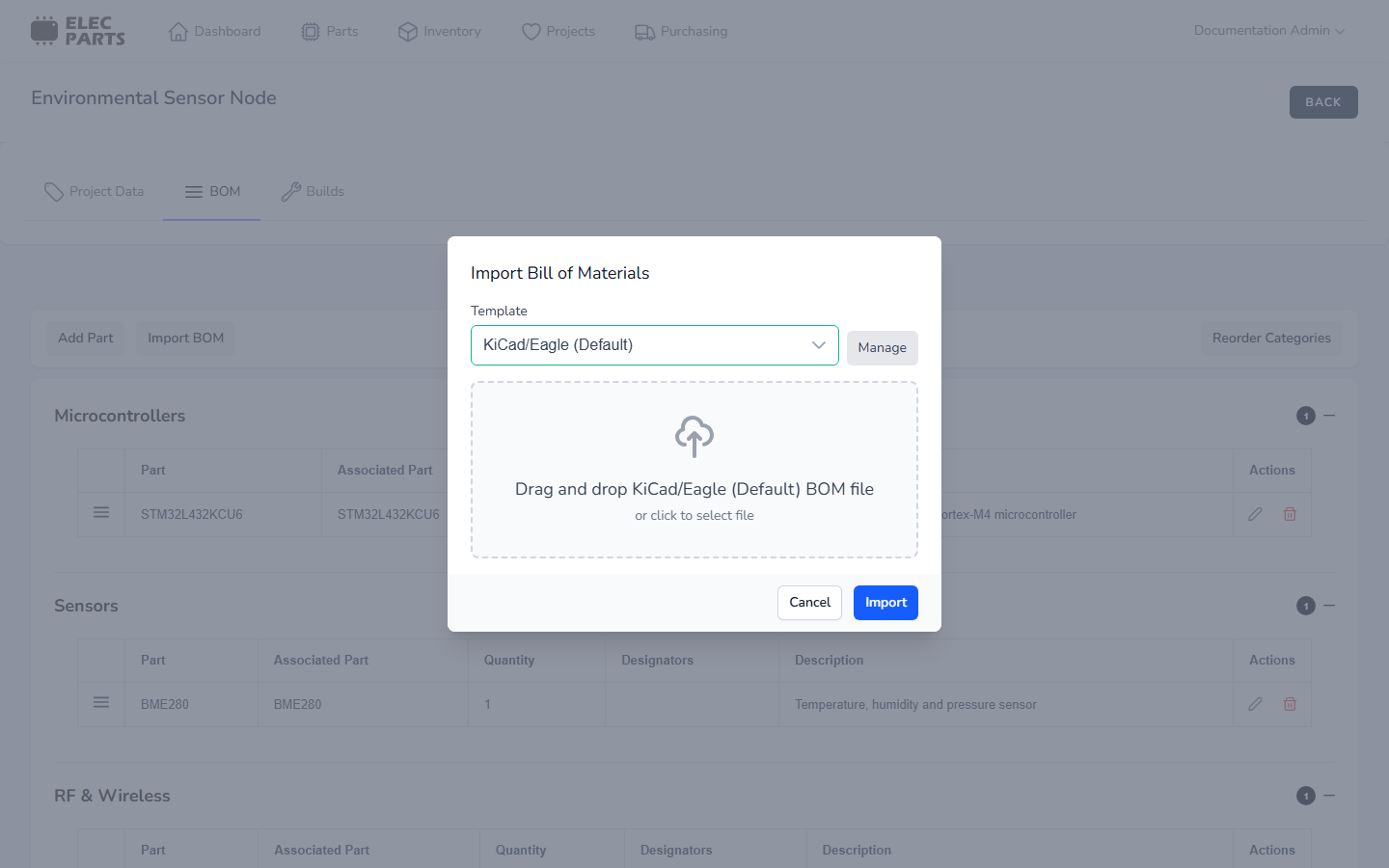
The import dialog does not provide a row-by-row preview before import. Importing replaces previously imported BOM rows, but does not replace rows added manually. Before replacing existing imported BOM rows, ElecParts checks whether any of them are already used by a build. If so, the import is rejected and the existing imported rows remain unchanged.
Select Manage beside the template selector to open BOM template management, where templates can be maintained. Custom templates let you map the part name, designators, description, and quantity to the matching CSV column headers.
Next: Create a project build.