

Adding inventory
Use Create in the Inventory workspace to prepare new stock. You need Create Inventory permission to open the workflow and Edit Inventory permission to add or import lines, change them, and commit the draft with Add to Inventory. The workflow first asks you to choose a default exact Location, then opens a draft. Draft lines are not stock until committed.
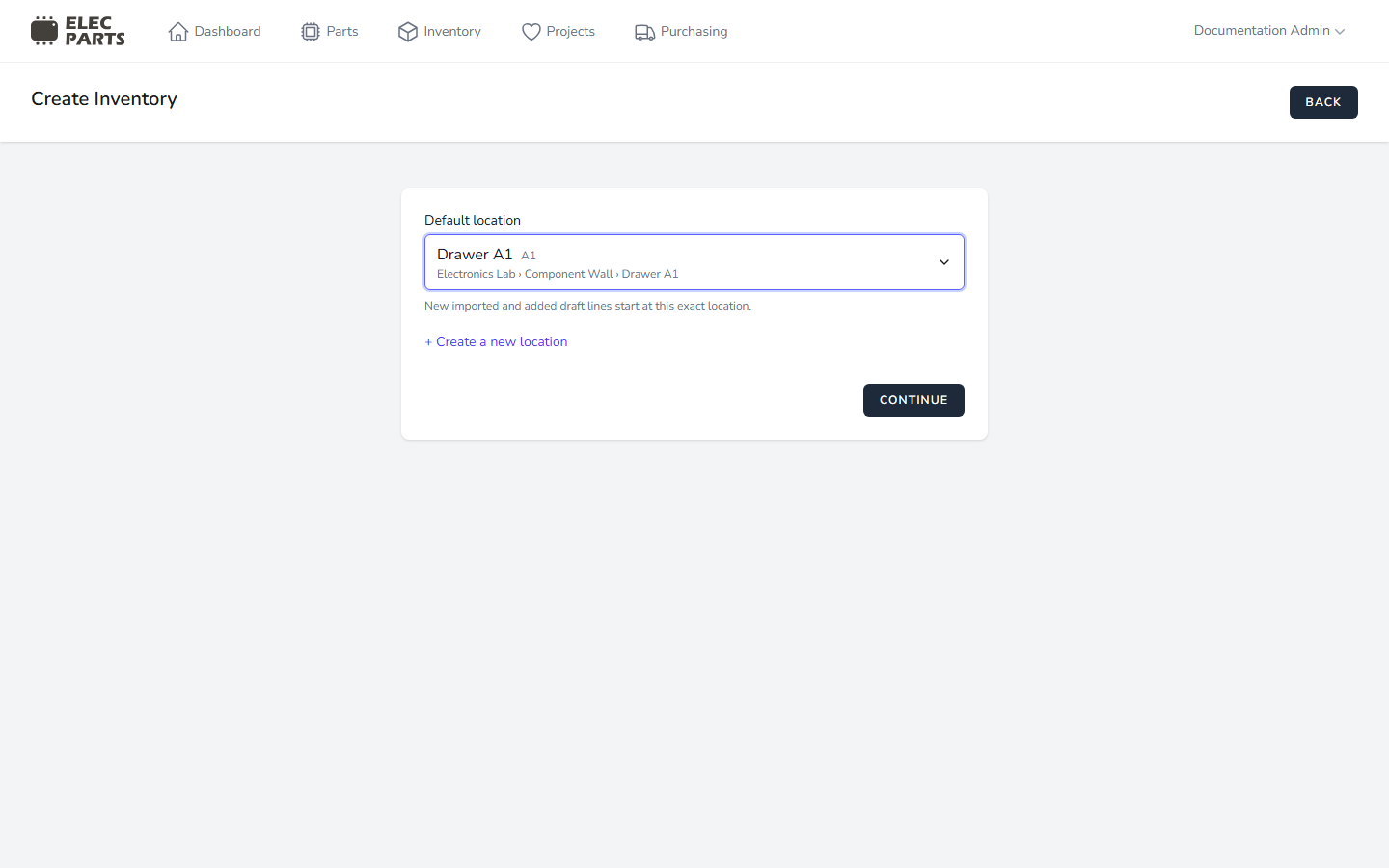
Choose the initial Location
- In Default location, choose an active Location. This becomes the starting Location for Parts you add or import into the draft.
- If you need a new place, select Create a new location. Enter a name, optionally choose an active parent and a code, then select Create. You need Create Locations permission for this option.
- Select Continue to open the draft. You must choose a Location before Continue is enabled.
Add a Part to the draft
- Search in Part by name, SKU, manufacturer part number, or supplier part number.
- Select a result from your Parts catalog or the available distributor results.
- Enter a positive whole-number Quantity and choose the exact Location for this line. The default Location is preselected.
- Select Add. The Part and quantity appear in the staged list.
If the same Part is already staged at that Location, Duplicate Part Detected asks whether to add the requested quantity. Confirm to continue. Matching manually added lines for the same Part and Location can be combined; supplier-specific imported rows may remain separate so their receipt and supplier details are preserved.
Import a supplier order file
The Import menu is available while editing a draft. Choose the supplier that matches your file:
| Import option | File to select |
|---|---|
| Tayda | PDF invoice from the Purchasing section of your Tayda account. |
| Mouser | Excel order export (.xls or .xlsx). |
| DigiKey | Order export (.xls, .xlsx, or .csv). |
| Reichelt | PDF invoice attached to your Reichelt order confirmation email. |
The importer stages recognized rows in the current draft at the selected Location. Review each row, its supplier details, quantity, and cost before committing. Malformed or unmatched rows are reported for review and are not added. These are supplier-specific formats, not a general spreadsheet import.
DigiKey and Mouser rows keep the supplier part number, manufacturer, and MPN for resolution when the draft is committed. The supplier number and supplier are checked first. If that listing is new, a complete manufacturer and MPN can match an existing Part or create one. When manufacturer is missing, the supplier number identifies a supplier-specific Part; the system does not guess from the MPN alone. Contradictory details on an existing supplier listing stop the commit with an error so you can correct the staged row before retrying.
Imports and distributor results only stage acquisition details. They do not create Parts or supplier listings while the draft is being prepared. Add to Inventory resolves or creates those catalog records and receives stock in one transaction. If any row fails, the commit rolls back and the draft remains available to edit and retry. Discarding a draft removes its staged rows and leaves the Parts catalog unchanged.
Review staged rows
In the draft table, search added items by name, SKU, manufacturer, MPN, description, or supplier part number. A Linked Part row points to an existing catalog Part. Resolves on commit means its catalog identity is checked when you add the draft to inventory. With Edit Inventory permission, you can edit a line's quantity, change its exact Location, or toggle Checked as a review mark. Removing a line requires Delete Inventory permission. Select multiple rows to choose a new active Location and select Apply. Changing a draft row's Location does not move existing stock; the row is still staged.
The Checked box helps track your review. It does not decide whether a row is committed: Add to Inventory processes every valid staged line.
Continue to Inventory Drafts to save work for later, commit stock, or discard the draft.