

Inventory Drafts
An inventory draft is a working list of Parts, quantities, and exact Locations. Staged rows are not stock until the draft is committed with Add to Inventory.
Keep a draft for later
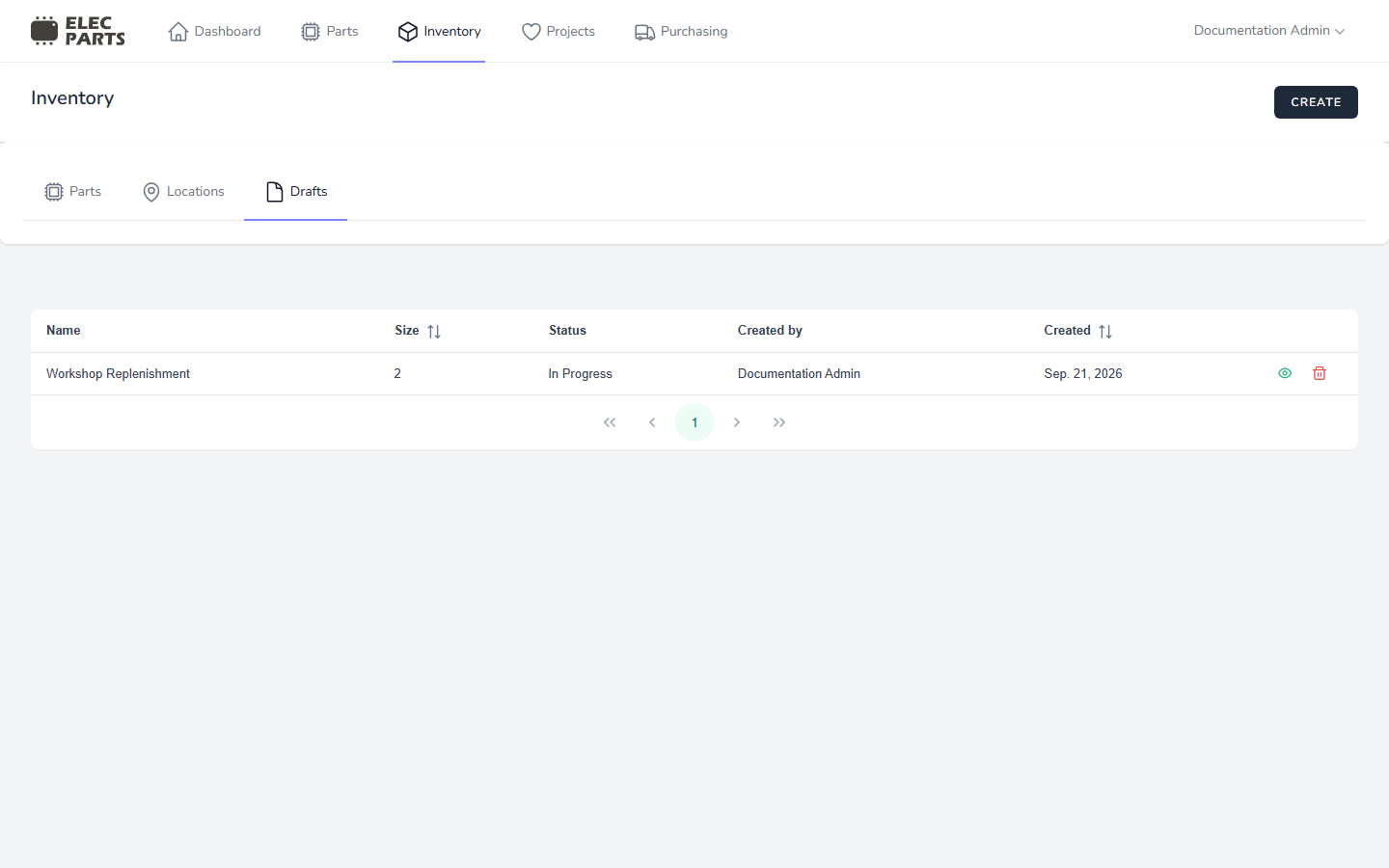
A new draft starts with a generated Inventory Draft - date and time label and is saved as you work. To give it a memorable name, select Keep as Draft, enter a name, and select Keep Draft. All in-progress drafts appear in Inventory → Drafts, including drafts that still have their generated label.
The Drafts list shows each in-progress draft's name, number of staged lines, status, creator, and creation date. Use the show action to continue a draft. The list contains only drafts that have not been committed.
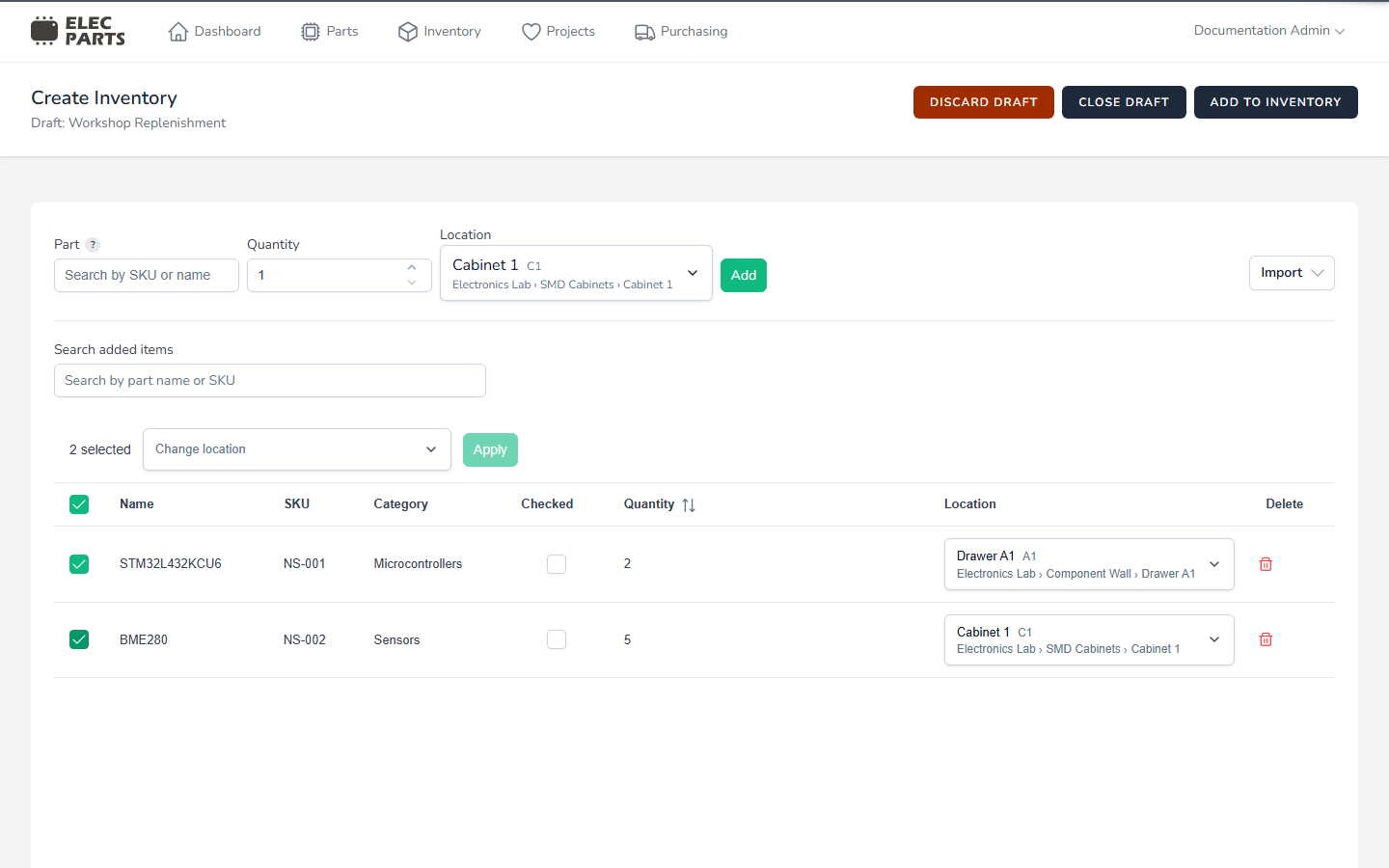
Close Draft leaves a named draft saved as-is and returns to the Inventory workspace. Open it again from the Drafts list. Closing does not commit or discard its lines.
Commit staged stock
Review each line's name, manufacturer, MPN, description, supplier details, quantity, and exact Location. Rows marked Linked Part already point to a catalog Part. Rows marked Resolves on commit carry the source details needed to match or create a Part and supplier listing. Select Add to Inventory to resolve every line and create stock at the Locations on the draft lines. Each committed line is recorded as stock with its own batch identity and receipt details where provided. After a successful commit, the draft is no longer listed under Drafts and the stock appears under Inventory → Parts and its Location.
The Checked column is a review mark. Checked state does not filter the commit; all valid staged rows are added. Catalog resolution, supplier listing creation, line links, stock lots, holdings, and receipt ledger entries are saved together. If a supplier identity, source item, Part, or Location is missing or conflicts with current catalog data, the commit fails with an actionable error. The transaction leaves the draft and all its staged details available to edit and retry. Draft changes require Edit Inventory permission.
Discard a draft
On an open draft, select Discard Draft and confirm Discard Draft. From the Drafts list, select the delete action and confirm the prompt, Are you sure you want to delete this inventory draft? Either action permanently deletes the draft and its staged lines; the staged quantities are not added to stock. This action cannot be undone.
Supplier imports and distributor results only stage source details. Discarding a draft removes its staged lines and does not create or remove Parts or supplier listings. Existing catalog records and stock remain untouched. Draft deletion requires Delete Inventory permission.