

Purchase Lists
A Purchase List groups items for one supplier. Create one from Needs Purchasing by sourcing request demand, or create an empty Draft list from the Purchase Lists page and add items yourself.
Find or create a list
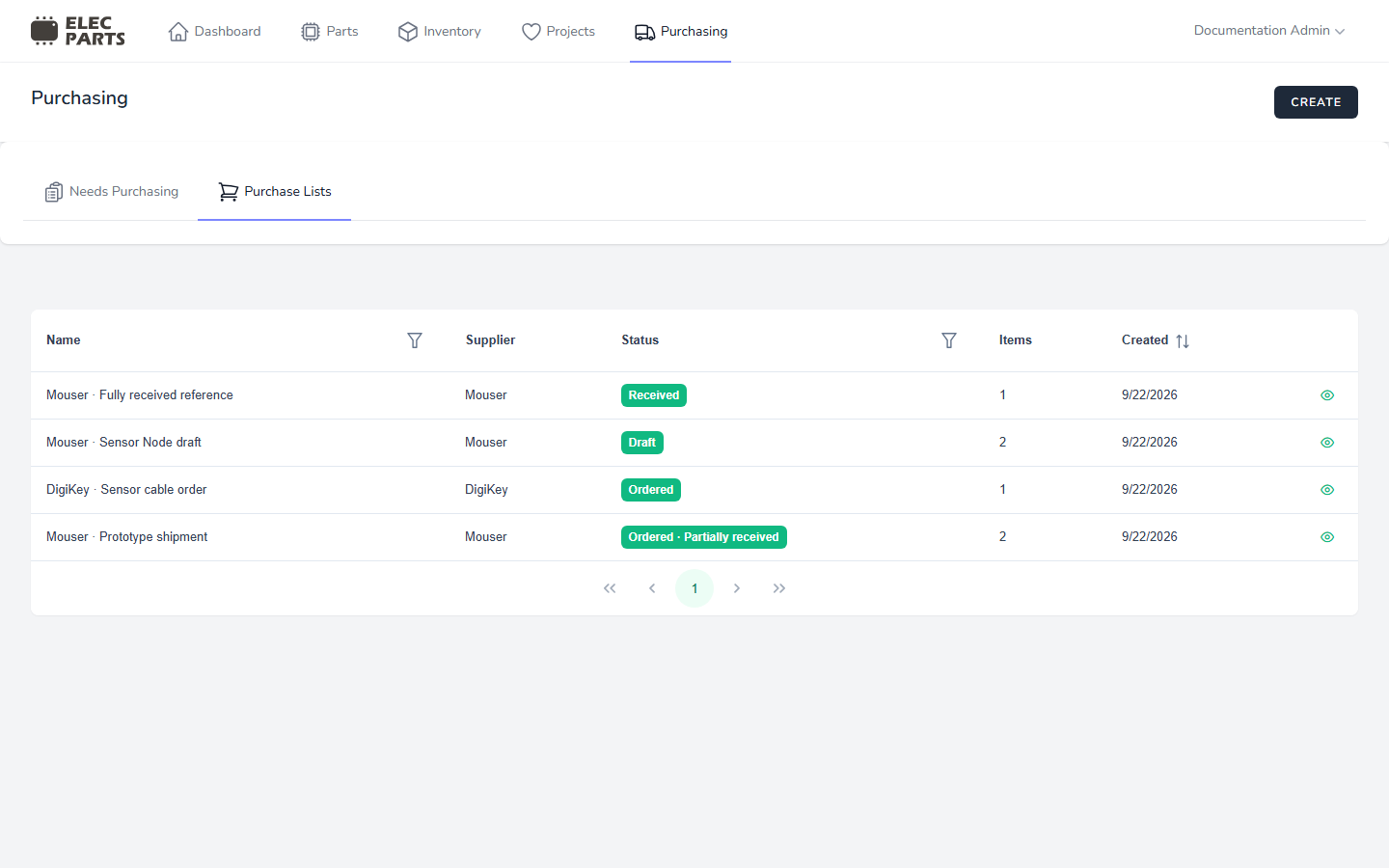
The Purchase Lists table shows each list's Name, Supplier, Status, Items (the number of lines), and Created date. The Name column menu offers Search by name; the Status menu offers Filter by status. Use the show action at the end of a row to open its details. Choose Create to open the Create purchase list form, enter its name and supplier, then save to make a Draft list.
The Status column displays the list's lifecycle status and receipt progress. Draft and Cancelled are stored list statuses. An Ordered list with no receipts shows Ordered; receipt progress can show Ordered · Partially received or Received. Partial or full receipt is derived from the quantities received on its items; it does not change the stored list status from Ordered.
Review list details
The detail page shows the list name and status, supplier, notes, and created, ordered, and updated times. Users with edit access can edit the name and notes while the list is Draft or Ordered.
An item must be on a Draft list before you can choose Mark as ordered. The list must contain at least one item. Marking it ordered records the order time and enables receiving. An Ordered list shows Receive items before its first receipt and Receive remaining after a partial receipt. The receiving steps are covered in Receiving.
You can cancel a Draft or an unreceived Ordered list. A list cannot be cancelled after any quantity has been received. Cancelling a Draft list releases its request allocations, so that demand can be sourced again. Cancelling an Ordered list before receipt keeps its request history.
Read the item table
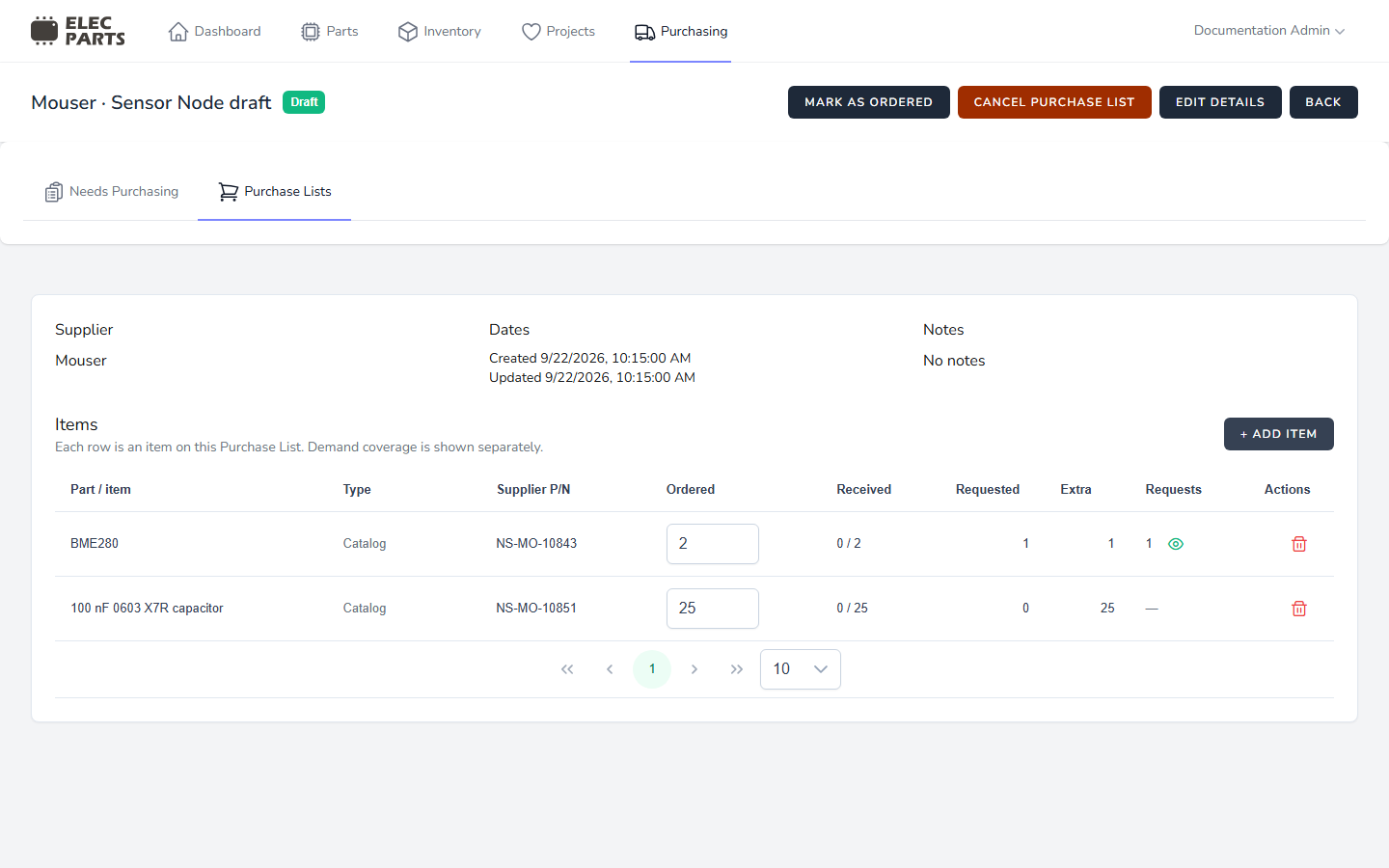
| Column | Meaning |
|---|---|
| Part / item | The catalog Part or item name on the line. |
| Type | Catalog is linked to a Part; Uncatalogued has a component identity but no Part link yet; Non-inventory is not tracked as stock. |
| Supplier P/N | The supplier part number from a saved supplier listing or the line's supplier SKU snapshot. |
| Ordered | The quantity planned for this supplier. On a Draft list, users with edit access can change it and save the new quantity. |
| Received | Quantity received so far, shown as received / ordered. |
| Requested | Units allocated to Purchase Request demand on this line. |
| Extra | Ordered units without request coverage: ordered quantity minus Requested quantity. |
| Requests | Number of request allocations on the line. Open the coverage action to see each request, its allocated quantity, and its source/build details. |
| Actions | Available actions, such as deleting an eligible Draft item. |
Requested and Extra describe different uses of the same ordered quantity. For example, a line ordered as 8 with 5 allocated to requests shows Requested 5 and Extra 3. A line with no request allocation shows all of its quantity as Extra.
Changing the quantity on a Draft item also changes its request coverage when needed. If you lower the ordered quantity below Requested, the line's coverage is reduced to fit and the affected demand becomes available to source again. Raising the quantity above Requested increases Extra. Deleting a Draft line removes its Draft allocations and returns that demand to Needs Purchasing. A line that has receipt history or received stock cannot be deleted.
Add an item manually
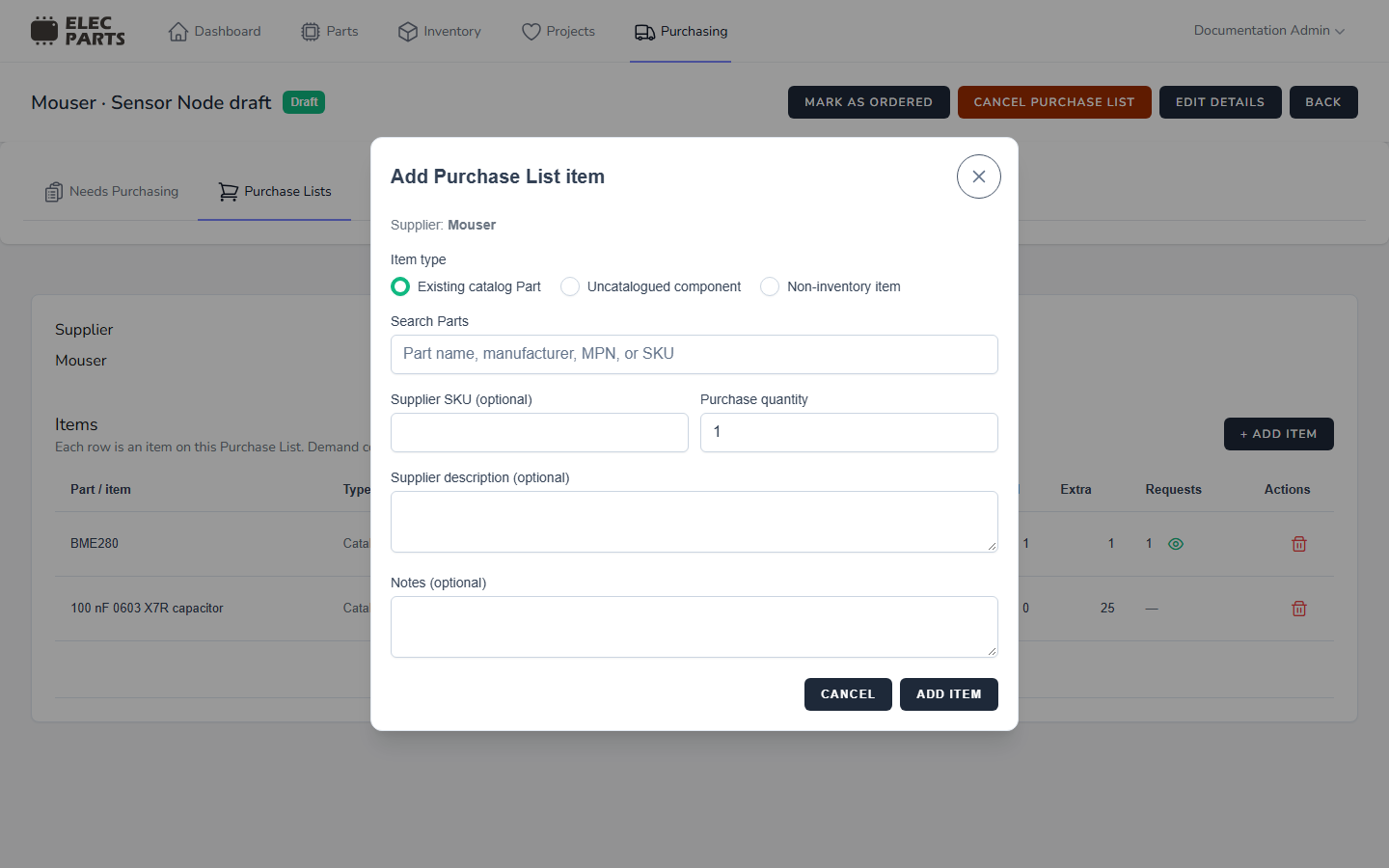
Choose + Add item on a Draft list. The supplier is fixed by the list. All item types ask for a purchase quantity; supplier SKU, supplier description, and notes are optional. A saved supplier listing can be selected only for a catalog Part with a listing for this list's supplier. Selecting it fills and locks the supplier SKU.
Existing catalog Part
Search Parts by name, manufacturer, manufacturer part number, or internal SKU, then select the Part. You can also select an optional supplier listing. Because the line is linked to a catalog Part, receiving it creates tracked inventory for that Part at the chosen location.
Uncatalogued component
Enter a component name and optionally its description, manufacturer, manufacturer MPN, supplier SKU, supplier description, and notes. The line has no Part link when added. During receiving, choose an existing Part, create a Part, or treat the item as non-inventory. Linking or creating a Part lets the received units enter tracked inventory; choosing non-inventory records the receipt without creating stock.
Non-inventory item
Enter an item name and optionally its description, supplier SKU, supplier description, and notes. This choice is for purchases that will not be received into tracked inventory. It does not link to or create a Part, and its receipt does not create stock.
For request demand and sourcing choices, see Source Purchase Requests. For receipt quantities, locations, and resolving uncatalogued items, continue to Receiving.