

Supplier Document Import
Supplier-document import is an optional helper inside receiving. It reads order or invoice rows and suggests which Purchase List lines they describe. Reading a file does not create a receipt, change Parts, or add stock. You still review matches and enter the physical quantities that arrived in the receiving form.
The action is available on an Ordered Purchase List when its supplier has a parser. Choose Import supplier document from the first receiving step and upload a file for that list's supplier. The file limit is 20 MB.
Supported suppliers and files
| Supplier | Accepted file types |
|---|---|
| DigiKey | .xls, .xlsx, or .csv |
| Mouser | .xls or .xlsx |
| Reichelt | .pdf invoice |
| Tayda | .pdf invoice |
The file must be a supplier document in a layout the parser recognizes. The importer checks the selected Purchase List's supplier and rejects a mismatched supplier type. Other suppliers can still be received manually.
Review the matches
After choosing Read document, the page summarizes the parsed rows:
- Matched automatically means the row has a unique, exact supplier identity or another unambiguous match. These rows are preselected; expand the automatic-match list to review them.
- Need confirmation means the row has a possible Purchase List match, but its identity is not strong enough to select automatically. Choose the correct Purchase List line or ignore the row.
- Unresolved means the importer did not find a safe match. Choose the corresponding Purchase List line if you can identify it, or ignore an unrelated row.
Review each row before continuing. For a row that needs confirmation or is unresolved and does not belong to the shipment, choose Ignore unrelated row. To replace the file, choose Choose another document. Use matched rows becomes available after every row is either assigned to a Purchase List line or ignored, and at least one row is assigned.
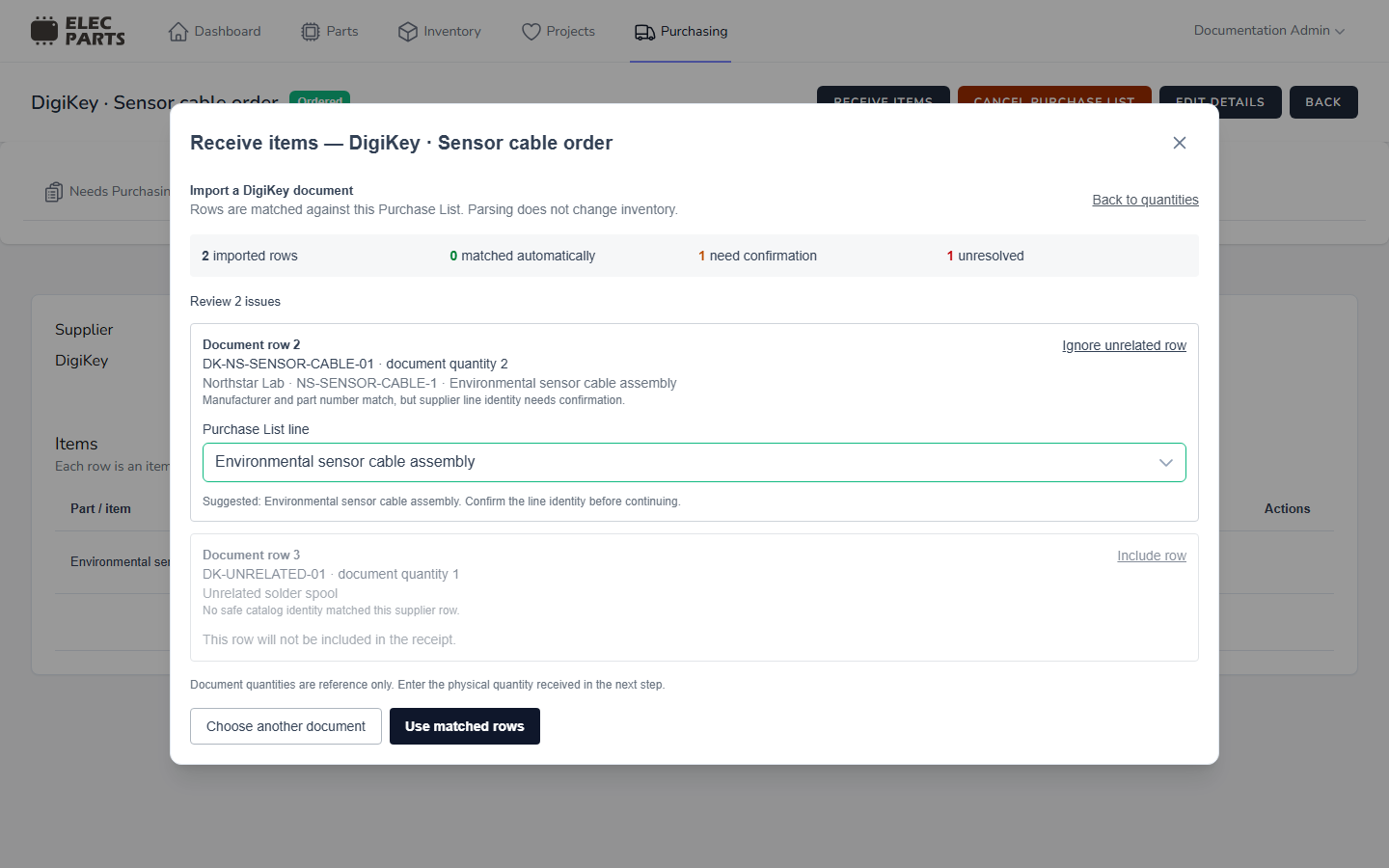
Rows assigned to the same Purchase List line are combined. The next step shows the document quantity and number of rows for reference, then pre-fills Receive now from the document total. Check that against the physical delivery: edit the receive quantity to what actually arrived. Document quantity does not cap receiving, confirm the receipt, or change inventory by itself.
If the document identifies a new or existing catalog Part, receiving may prepare a Part match for an unlinked line. Review the identity in Resolve items. A conflict with a Part or supplier listing already linked to the Purchase List line blocks confirmation until the list or document is corrected.
Troubleshoot a file
- The upload control does not accept the file: check the supplier's accepted extensions above and the 20 MB limit. For example, DigiKey accepts CSV, while Mouser accepts Excel files.
- The document cannot be read or contains no purchase lines: export the supplier's order or invoice again in a supported format and make sure the file uses the supplier's recognized column or invoice layout. Then use Choose another document.
- The wrong supplier is shown or the file is rejected as a mismatch: import from the Ordered Purchase List for the supplier that produced the document. Import uses that list's supplier.
- A row is suggested or unresolved: compare its supplier number, manufacturer, MPN, description, and quantity with the Purchase List. Select a line only when its identity is clear; otherwise ignore an unrelated row and correct the order separately.
- An imported identity conflicts with a linked Part: correct the Purchase List identity or select the matching supplier document, then reopen the import helper.
For the full quantity, identity, and destination flow, see Receiving.