

Profile and Security
Open My Profile from the user menu, then choose General or Security. These settings apply to your central ElecParts account across all labs.
General profile
On General, update your first and last name, then select Save. These are your central account profile fields, separate from the settings for any one lab.
Your current email address is read-only on the page. To change it, select Change, enter your current password and new email address, then select Save. ElecParts sends a confirmation link to the new address. Open that link within 24 hours to complete the change. After confirmation, you are signed out and should sign in again with the new email address. A notice is sent to the old address.
Password and account recovery
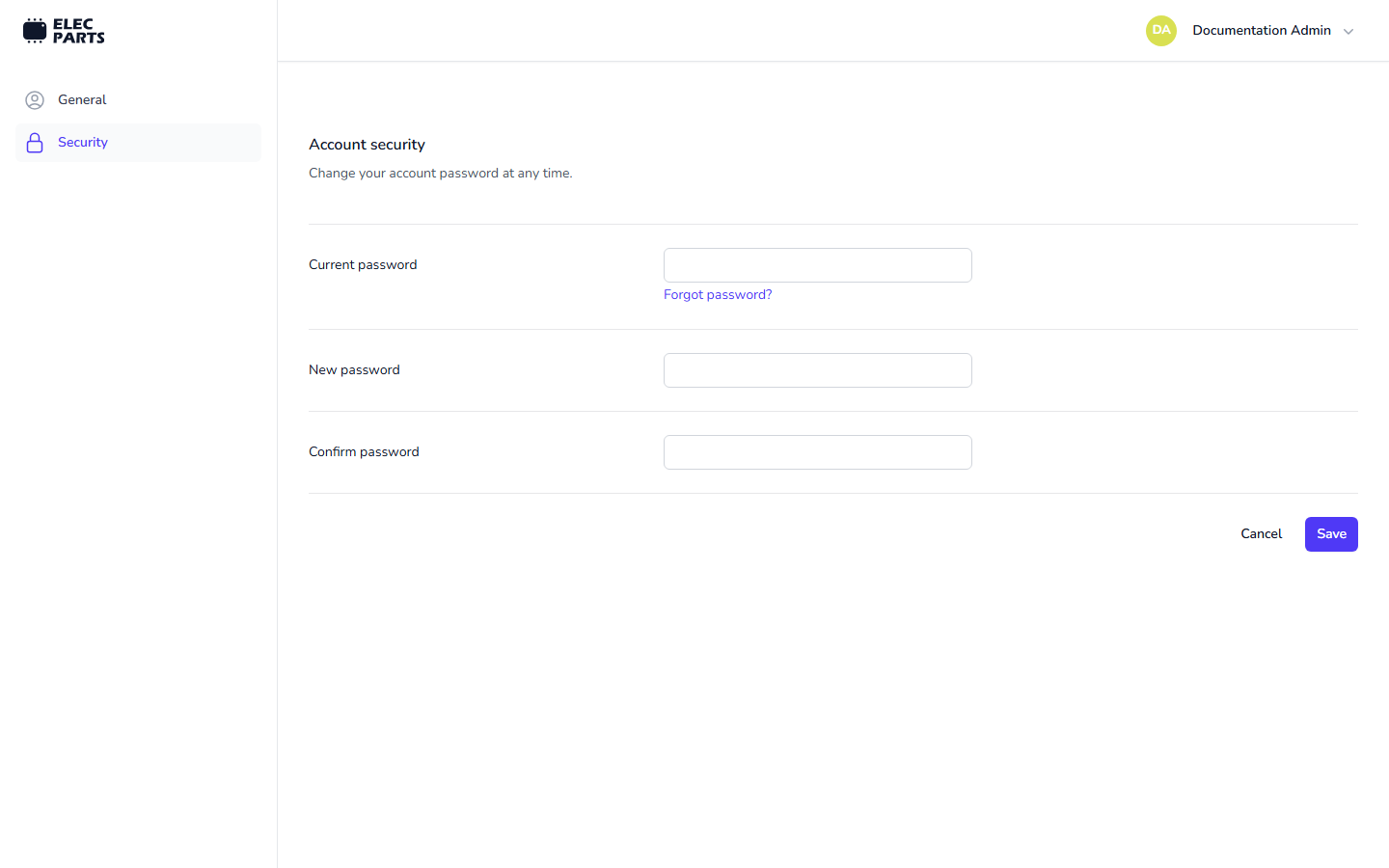
On Security, enter your current password, the new password, and its confirmation, then select Save. Your password protects your central sign-in and therefore access to all of your labs.
If you forgot your password, sign out and select Forgot password? on the sign-in page. Enter your account email and follow the reset link sent to you. If you are still signed in but cannot provide your current password, sign out first to use the reset flow.
Sign in and registration
Use your account email and password on the central sign-in page. When registration is open, Get started takes you to the account form. After you register, verify your email from the link ElecParts sends before opening the app; you can request another verification message from the verification page.
The sign-in and registration pages also show a Google option. Its availability depends on Google sign-in being configured for your ElecParts service.
For workspace-specific settings, see App Settings. For switching or creating workspaces, see Labs.