

Locations
Open Inventory → Locations to browse physical storage. Locations can be nested to any depth. A root Location has no parent; a child Location sits inside another Location. The displayed path, such as Electronics Lab › SMD Cabinets › Cabinet 1, identifies the exact place where stock is held.
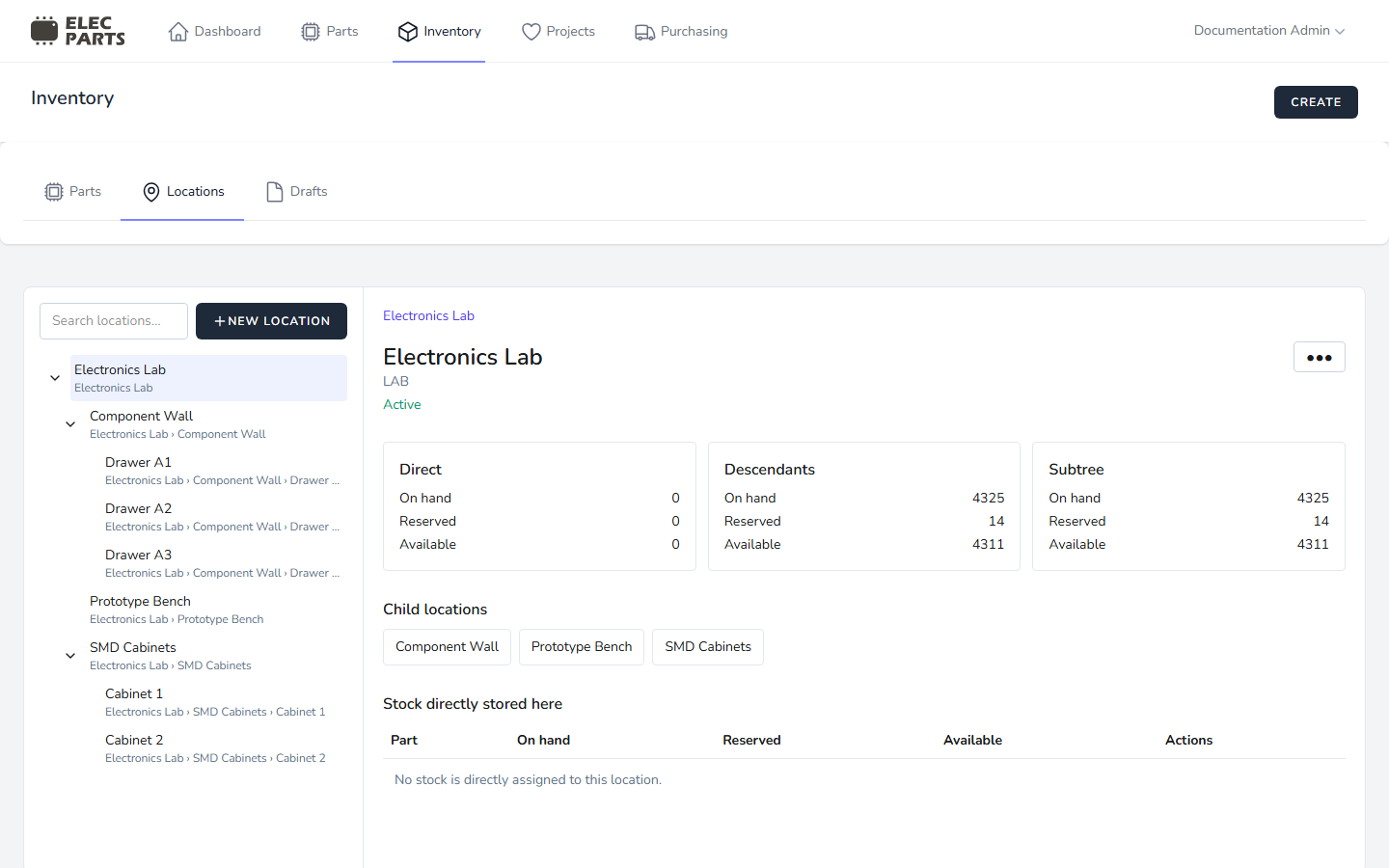
Browse the hierarchy
Use the chevrons to expand or collapse child Locations. Select a Location to show its full path, optional code, Active or Archived status, child Locations, stock summaries, and stock stored directly there. The search field matches Location names, codes, and paths, including archived Locations.
The stock summary separates three scopes:
| Summary | Includes |
|---|---|
| Direct | Stock assigned to the selected Location itself. |
| Descendants | Stock assigned to all child Locations below it, at any depth. |
| Subtree | Direct stock plus stock in all descendant Locations. |
Each scope reports On hand, Reserved, and Available. Reserved at a Location counts allocations assigned to holdings there. A Matching reservation without an exact picked holding remains at the Part level and is not assigned to any Location. The Stock directly stored here table lists Parts and quantities assigned to the selected Location; stock in child Locations appears in Descendants and Subtree totals, not this table.
Create and edit Locations
With Create Locations permission, choose New location to add a root or select a Location and choose Add child to nest a new one. Enter a required name and, optionally, a code. The parent must be active. Location codes must be unique; names must be unique among siblings and root Locations. The same name can be used under different parents.
With Edit Locations permission, choose Rename / Edit to change a Location's name or code. Its path updates to reflect the hierarchy. Choose Move location to select a different active parent or No parent / Root location.
Move a Location
Moving a Location changes its place in the tree and the paths of its descendants. It keeps stock assigned to the same exact Location records. To change where a holding is stored, use Move stock.
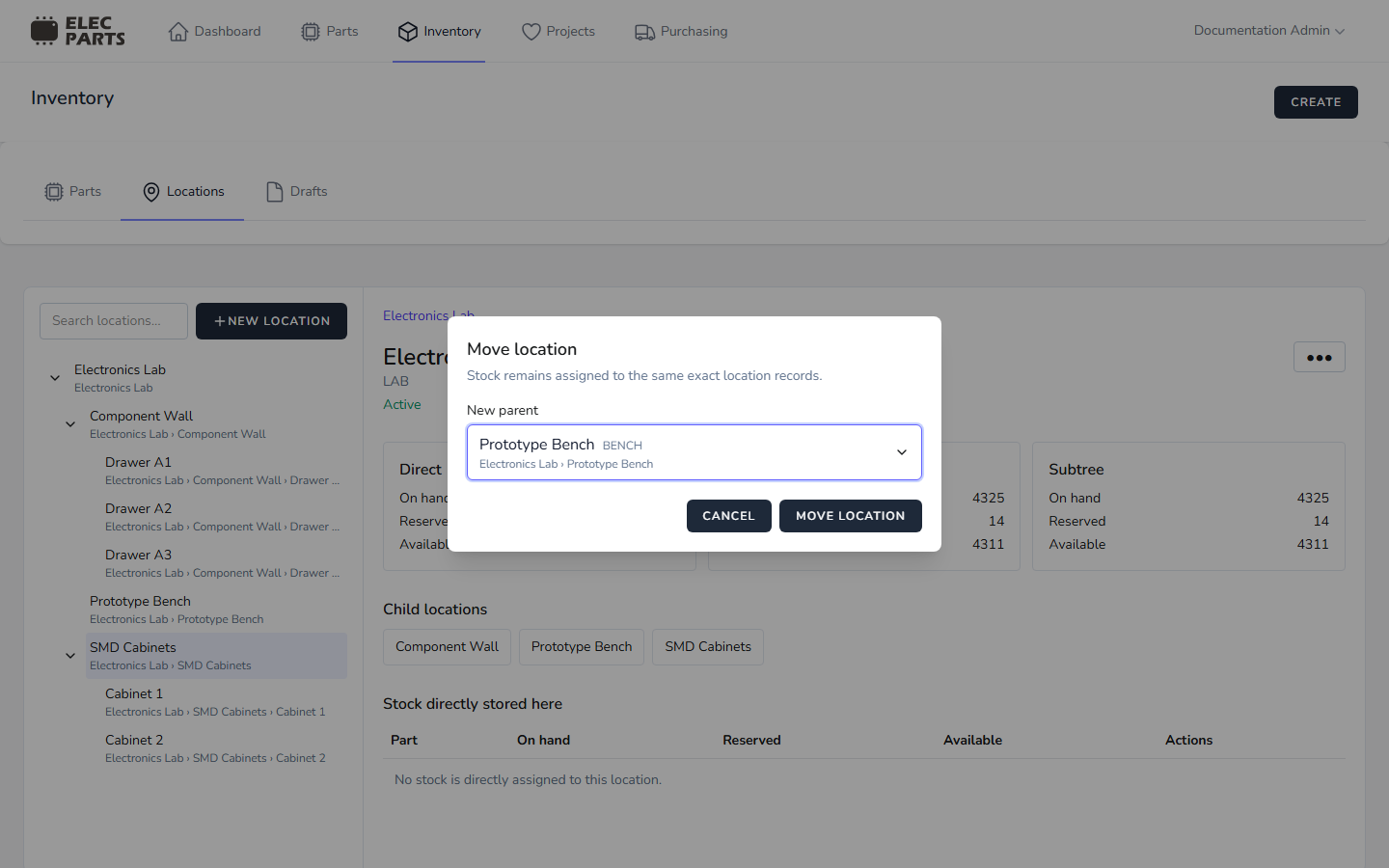
A Location cannot be its own parent or moved under one of its descendants. The destination parent must be active, and the move cannot create a duplicate sibling name.
Archive, reactivate, and delete
With Edit Locations permission, choose Archive to mark an active Location as archived, or Reactivate to make an archived Location active again. Archiving does not move or remove stock. Archived Locations remain visible for review, but cannot be selected as a new stock or draft destination. Move existing stock to an active Location if it should remain available for receiving and movement.
An active Location cannot be archived while it has an active child. Archive or move active children first. Reactivate an archived parent before reactivating its archived children. New children also require an active parent.
With Delete Locations permission, choose Delete to remove a Location; this takes effect immediately. A Location is retained if it is referenced by a stock holding or its history, an inventory draft, or a staged draft line. Deleting it does not delete or reassign stock. If the Location has no such dependencies, its direct child Locations are promoted to its parent (or become root Locations). A name conflict at the new level prevents the deletion.
For Locations used while adding stock, see Adding Inventory. Supplier receipts also select an exact destination Location; see Receiving.