

Source Purchase Requests
Use Add to list on an open request in Needs Purchasing to choose a supplier and put the remaining demand on a Draft Purchase List. Sourcing records a plan to buy; it does not receive stock.
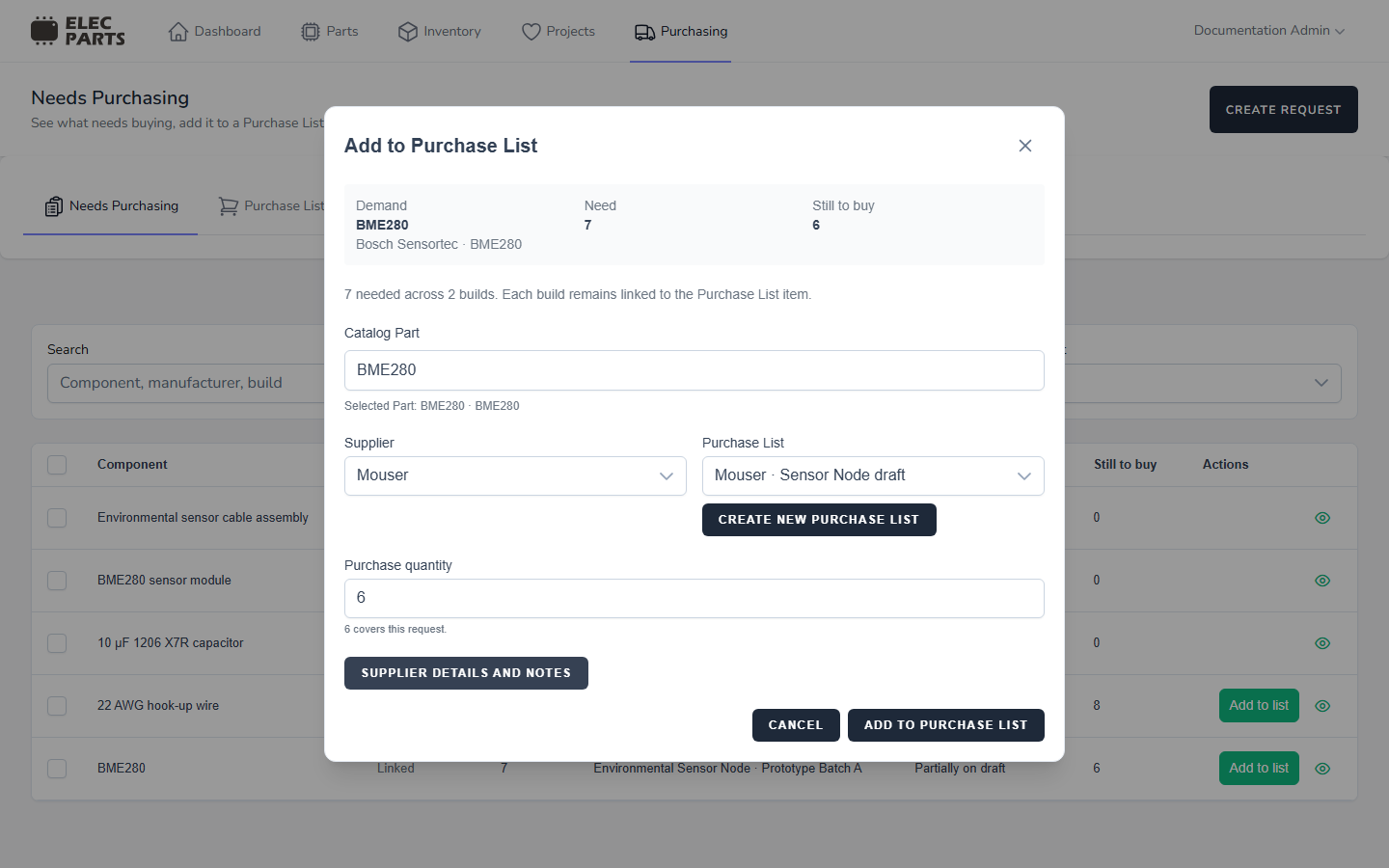
Choose the Part and supplier
The dialog shows the request's Need and Still to buy quantities. A request already linked to a catalog Part starts with that Part selected. An unresolved Build request may show suggested compatible Parts; an unresolved manual request can search the catalog directly. In either case, Catalog Part is optional. Suggestions are choices, not automatic links. Select or search for a Part to identify the request with it, or leave the request unresolved and identify it during receiving.
Choose a Supplier before selecting a destination. The optional Supplier listing choices belong to the selected Part and supplier. Choosing a listing copies its supplier part number into Supplier SKU; that value is locked while the listing is selected. Without a listing, you can enter a supplier SKU yourself. Supplier description and Notes are optional snapshots on the Purchase List line.
When sourcing succeeds with a different Part selected, the request is linked to that Part and its catalog detail snapshots are updated. The originating Build requirement and build history remain intact. Existing Draft coverage for the request is released when its Part changes; a Part cannot be changed after it has history on an Ordered or Cancelled Purchase List.
Choose an existing or new list
The destination selector only offers Draft Purchase Lists for the chosen supplier. A list for another supplier cannot receive the request.
- With no compatible Draft list, the dialog switches to a new list name.
- With one compatible Draft list, it is selected automatically.
- With several compatible Draft lists, choose the one to use.
- Select Create new Purchase List whenever you want a separate order. This choice stays selected even when a compatible Draft list exists; use Choose existing Draft list to switch back.
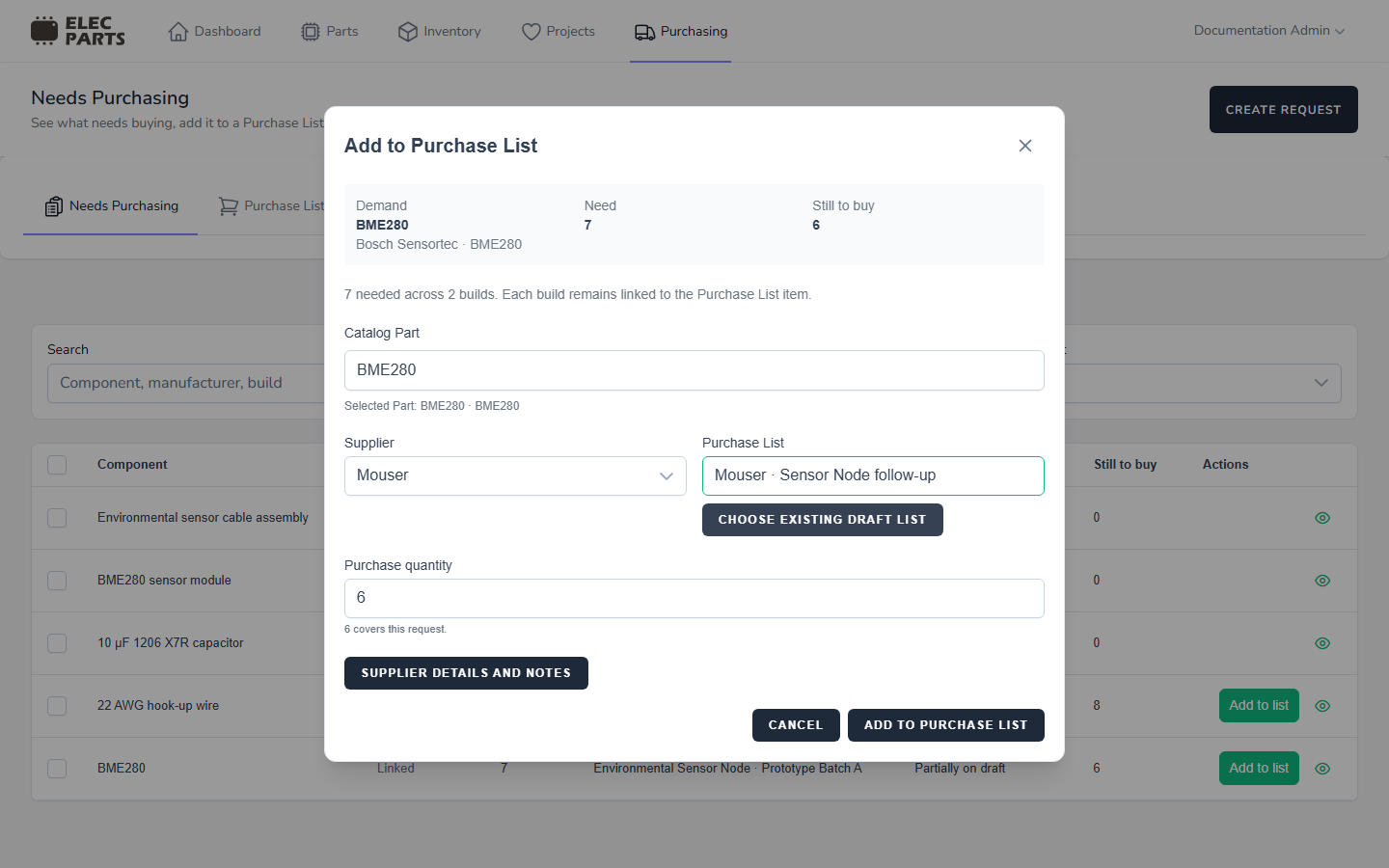
Submitting creates a Draft list when you chose a new destination, or adds the line to the selected Draft list. Compatible lines can be combined on one list line; request coverage remains recorded against the underlying request or requests. After sourcing, the queue's Still to buy amount reflects the remaining demand not yet allocated to a list.
Understand the quantities
Still to buy is the request quantity that has not yet been allocated to a Purchase List. Purchase quantity is how many units to put on the supplier order. The dialog shows how many units of that purchase cover the request and how many are extra for stock.
Coverage is the smaller of the purchase quantity and the request's remaining demand. For example, if 4 units remain and you enter 6, 4 cover the request and 2 are extra. If you enter 3, all 3 cover the request and 1 unit of demand remains to be sourced. Coverage is calculated from the two quantities; it is not a separate editable amount in this dialog.
On the list, Requested is the quantity allocated to requests, while Extra is the ordered quantity without request coverage. See Purchase Lists for line quantities and editing Draft list items.
Source grouped and batch demand
When a queue row groups open requests for the same catalog Part, Add to list can source those requests together. The dialog shows their combined demand and distributes the purchased coverage across the selected requests. If the purchase quantity is below their combined remaining demand, some requests may be only partly covered or remain uncovered, so that demand is still available to source. A group can include linked manual requests as well as Build requests; Build requests retain their project and build history.
For requests with different component identities, select queue rows and choose Add selected to list. The batch dialog shows the selected request count and each request's remaining quantity. Choose one supplier and an existing Draft list or a new list for the batch. Batch sourcing uses each request's remaining quantity: requests linked to the same catalog Part can share a line, while different Parts and unresolved requests remain on separate lines. Each request keeps its own allocation, so its progress can be followed in Needs Purchasing and Purchase List coverage.
Continue with Purchase Lists to review the order, add items, and mark it ordered.