

Stocked Parts
Open Inventory → Parts to review stock. The table includes stocked holdings with a positive On hand quantity; catalog Parts with no stock are listed in Parts instead.
Grouped inventory view
Each top-level row groups one Part with one supplier listing (or no listing) at one exact Location. A Part can therefore appear in several rows when it has stock in multiple Locations or from different supplier listings. The Location column shows the full path.
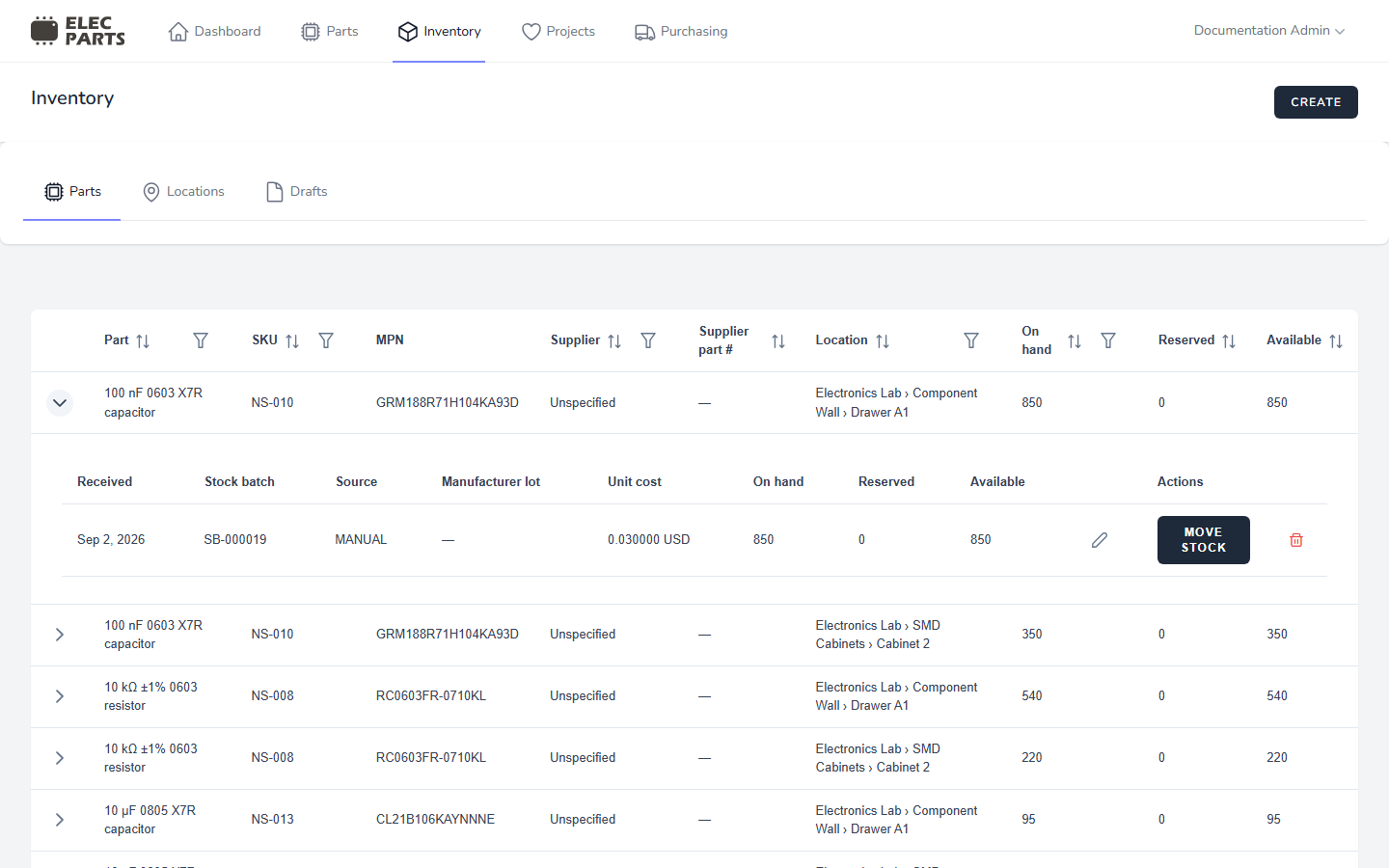
The grouped table shows:
| Column | Meaning |
|---|---|
| Part | Catalog Part name. |
| SKU | Internal Part SKU. |
| MPN | Manufacturer part number. |
| Supplier | Supplier connected to the batch's supplier listing, or Unspecified. |
| Supplier part # | Supplier's product number, when a listing is recorded. |
| Location | Exact Location path. |
| On hand | Sum of quantity in the group's current holdings. |
| Reserved | Quantity allocated to active builds from those exact holdings. |
| Available | On hand minus Reserved. |
Use the filter menus on Part, SKU, MPN, Supplier part #, Supplier, Location, and On hand. Part, SKU, MPN, and Supplier part # filters search text; Supplier and Location filters let you choose values; On hand filters by an exact number. Sort the sortable columns with their headers. The table is paginated, with ten groups per page.
Expand a group to see holdings
Select a row's expander to load its current holdings. Each row is one stock batch at that Location. The expanded table shows Received, Stock batch, Source, Manufacturer lot, Unit cost, and the holding's On hand, Reserved, and Available values. A batch can appear at more than one Location after a move; its batch identity and receipt details stay the same.
Location and holding quantities only count reservations assigned to those exact holdings. A Project Build in Matching can reserve a Part before choosing a Location or batch. That reservation is included in the Part's Available total, but it does not appear against a particular Inventory row until stock is allocated during Picking. See Project Builds.
Adjust a holding's quantity
With Edit Inventory permission, expand a group, select the row's edit control, enter the new whole-number On hand total, and save. You can set the quantity to zero. The adjustment records a stock transaction and preserves the stock batch history.
The new quantity must cover the amount reserved from that exact holding. A reduction also cannot exceed the Part's current Available total, which already accounts for Part-level Matching reservations. If a build reservation prevents the change, resolve it in the relevant Project Build first.
Move stock to a different Location
With Edit Inventory permission, expand the group and select Move stock on the holding. Choose a different active destination Location and a quantity from 1 through the holding's Available amount. You can move part of a holding.
The source On hand amount decreases and the destination holding increases by the same quantity. If the stock batch already has a holding at the destination, the quantities are combined there. The batch number, supplier, and receipt identity remain attached to the moved stock. Moving stock changes its exact Location; it does not change the batch's total quantity.
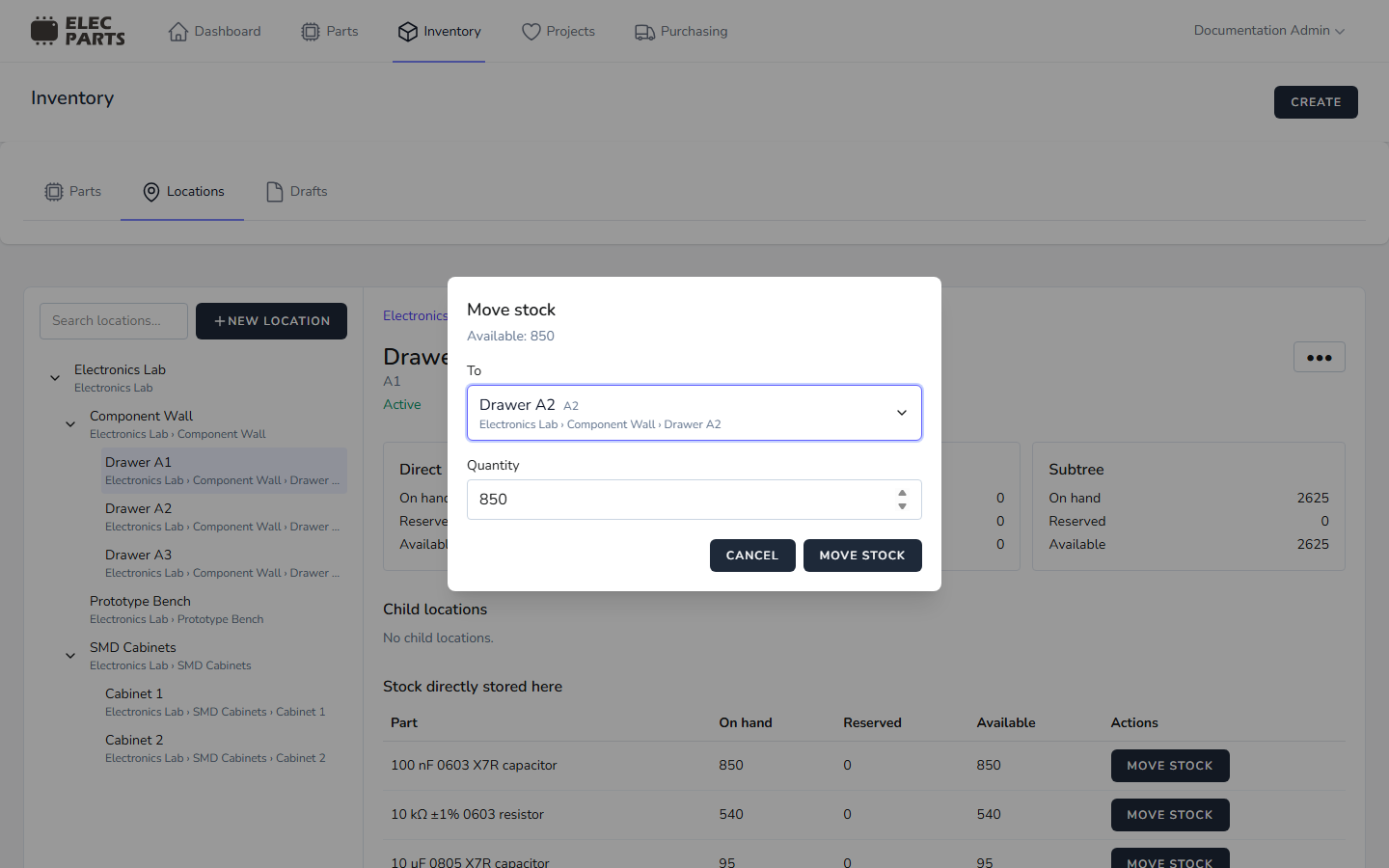
You cannot move stock to its current Location or to an archived Location. Location moves change the hierarchy only; see Move a Location.
Remove stock from a holding
With Delete Inventory permission, select the holding's delete action and confirm Remove stock holding. ElecParts scraps all remaining On hand quantity in that holding and records the stock change; the batch history is retained. This action cannot remove quantity reserved for an active build, including a Part-level Matching reservation that still constrains the Part's Available total.
For stock received from a supplier Purchase List, see Receiving. For catalog information and Part-level stock totals, see Part details and stock.